
Bus reservation
In the "Bus Reservations" section of the AllRide application, you're provided with a user interface to view and manage bus booking details. Here's an overview of the displayed information:
General Layout
- This screen lists all bus reservations that have been booked through the AllRide platform.
- It provides essential information such as who made the booking, the pick-up and drop-off points, the date and time of pick-up, the
trip mode, and thecurrent status of eachreservation.reservation, and other details.

Key Information Columns
- Departure at: Shows the day, date, and time of departure.
- Pick-up Point: Displays the bus station from which the passenger will board the bus.
- Drop-off Point: Displays the passenger's destination bus
station of the passenger.station. - Customer: Displays the name of the passenger.
-
Status: Displays the current status of the bus trip.
Reservation details
When you click on a bus reservation, a detailed page is presented, which systematically organizes all pertinent details about the trip:
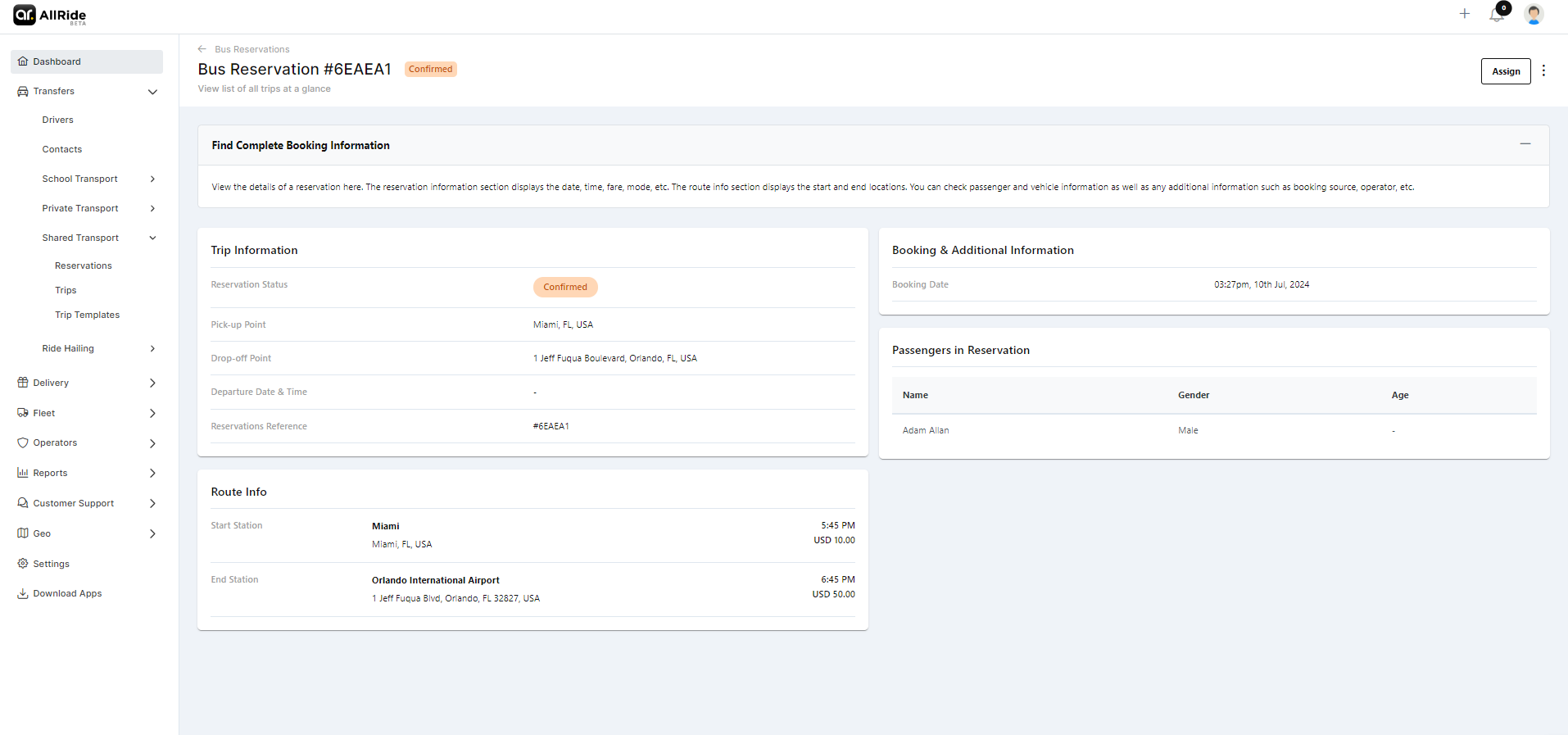
Trip Information:
- Reservation Status: Displays the current status, such as 'Requested' or 'Confirmed'.
- Pick-up point: Displays the bus station from which the passenger will board the bus.
- Drop-off point: Displays the passenger's destination bus station.
- Departure Date & Time: Indicates when the trip is set to start.
Distance Covered:Reflects the total planned distance of the trip in kilometers.Duration of Trip:Estimated time the journey is expected to take.Trip Fare:The cost associated with this particular trip.Trip Mode:Specifies the nature of the trip, like 'One Way'.- Reservations Reference: A unique code or number is assigned to the reservation for identification.
Route Info:
- Start Station: The initial pickup location for the journey.
Stops 1 through 5:Any intermediate stops included in the trip's itinerary.- End Station: The final drop-off point for the journey.
Booking & Additional Information:
Booked by:The individual or entity that made the reservation.Booked from:The source from which the reservation was made, like an app or dispatch panel.- Booking Date: When the reservation was logged into the system.
Operator:The company or operator managing the bus trip.Facilities:Any additional amenities offered during the trip (if this information is available).
Passenger and Vehicle Information:
Number of Adults/Children/Infants:The count of passengers traveling, categorized by age group.Number of Baggage:The amount of luggage expected.Vehicle Type:The type or model of the bus assigned for the trip.Vehicle:The specific identifier for the vehicle used.
Passengers in Reservation:
- A list showing the names and demographic details of all passengers included in the reservation, such as gender and age. The layout is designed to provide a complete
overviewtripof the trip,overview, allowing for easy review and management of the booking details.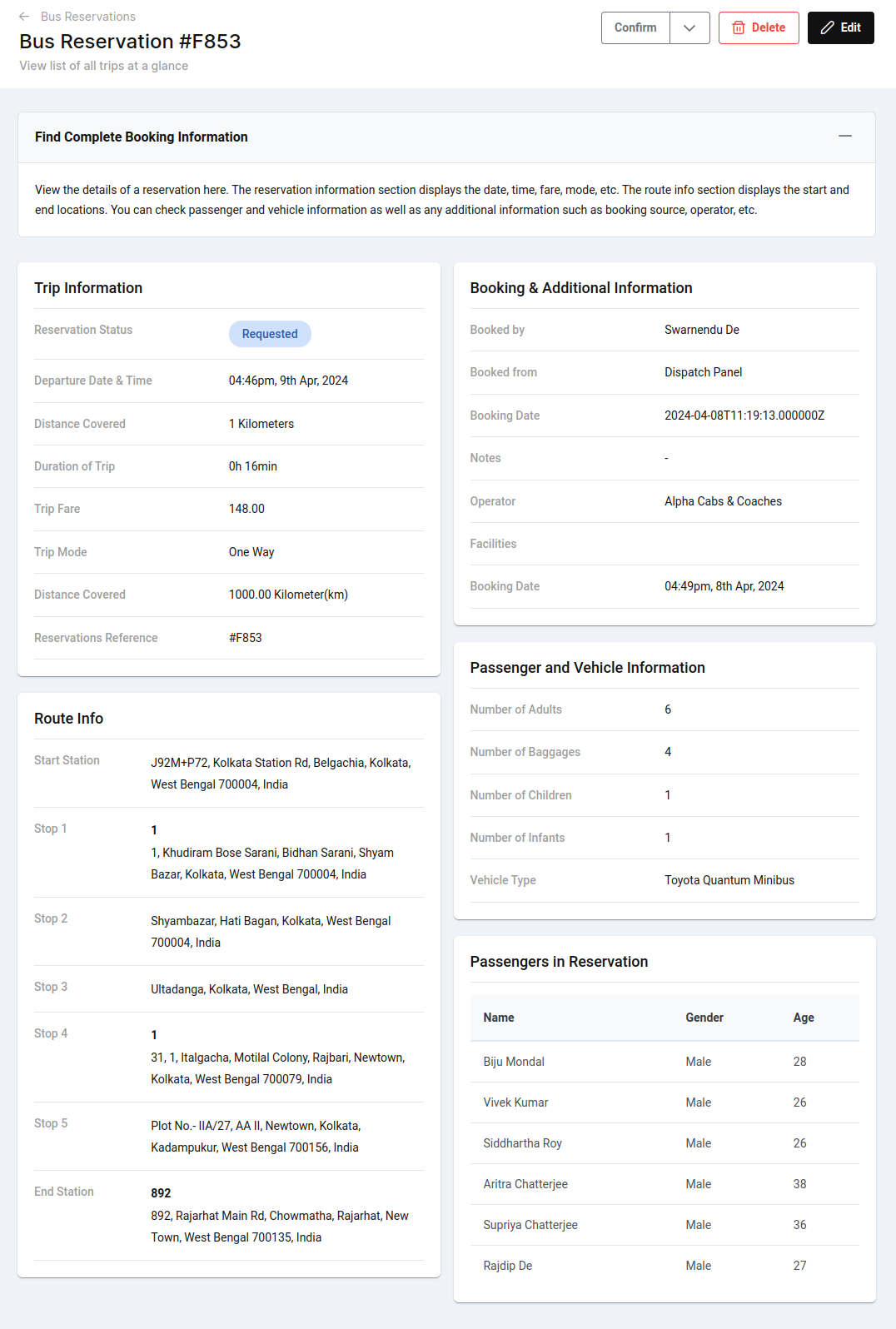
Create reservation
Certainly, let's dive into the details of each tab for creating a new bus reservation:
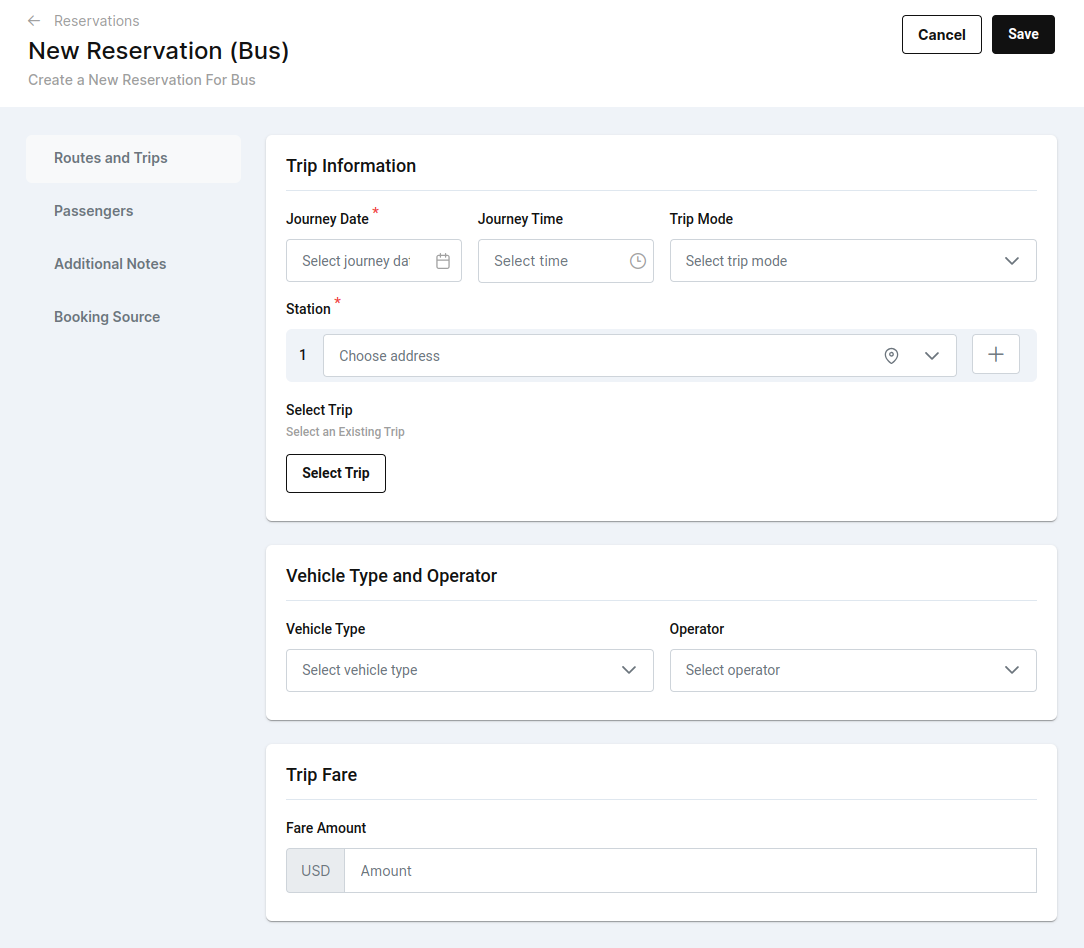
1. Routes and Trips Tab:
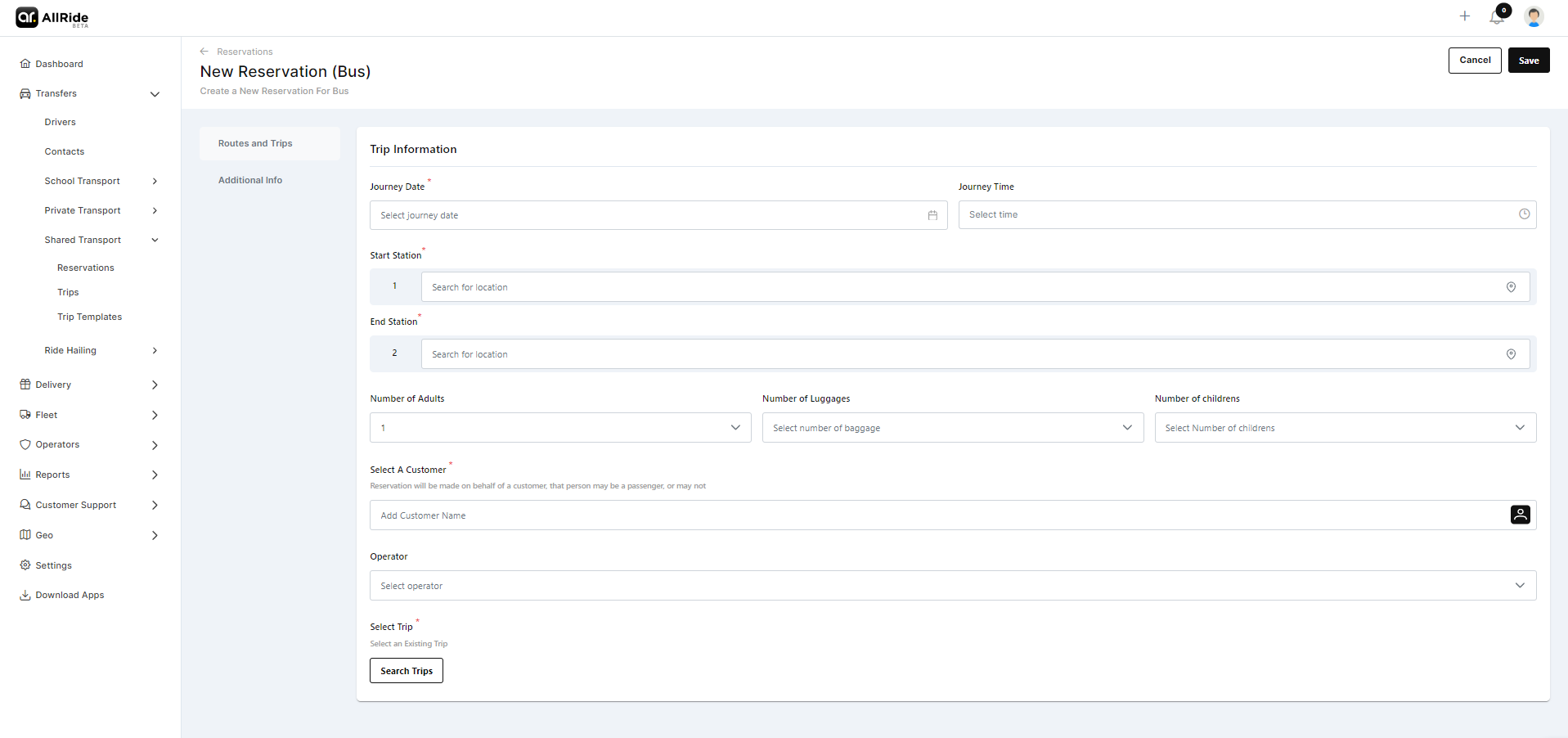
- Journey Date: Here, you'll select the date for the bus reservation.
- Journey Time: This is where you'll choose the time for the bus to pick up the passengers.
TripStartMode:You'll decide whether the trip is one-way or round-trip.- Station: You can input the starting location and, if necessary, add multiple pick-up or drop-off points.
- Start Station: You can input the starting location and, if necessary, add multiple pick-up or drop-off points.
- Number of Adults: Input the number of adult passengers.
- Number of Luggage: Input the luggage number.
- Number of children: Input the number of children.
- Select A Customer: Select a customer from the popup menu
- Operator: Select an operator
- Select Trip: If this reservation is part of an existing trip, you'll link it by selecting from available trips.
2. PassengersAdditional Tab:Info:
NumberPassenger name and age: Input the name and age ofAdults/Children/Infants:You'll indicate how many people are traveling and in which age categories.Number of Bags:Here, you'll specifythenumberpassenger.of baggage items to account for on the trip.Passenger Information (Optional):If needed, you can enter detailed information about each passenger, including title, full name, and age.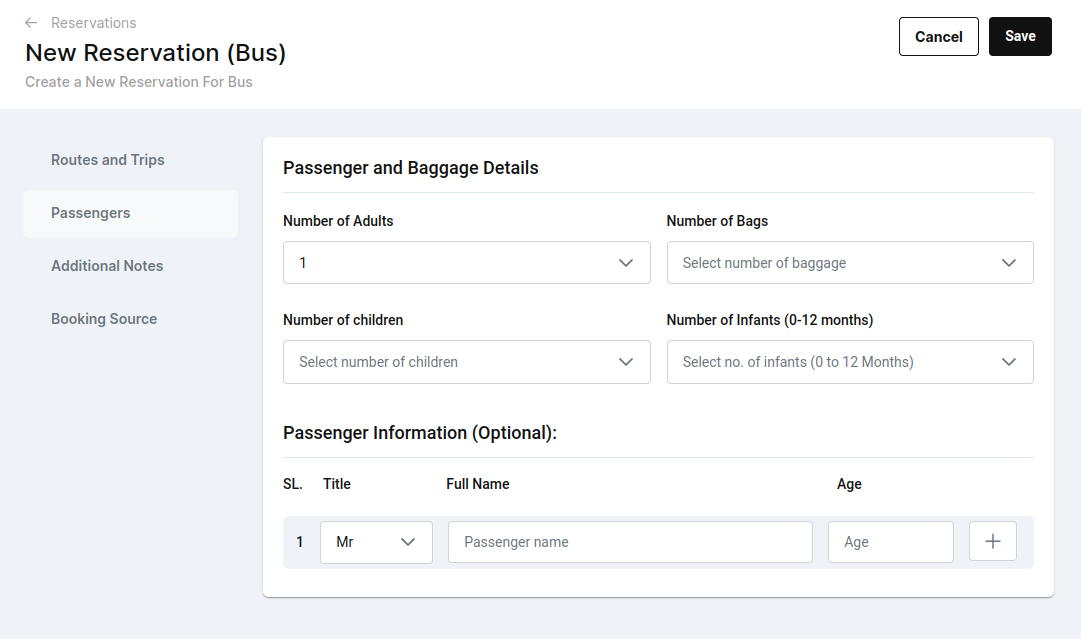
3. Additional Notes Tab:
Notes:In this free-form text field, youYou can addanymultipleadditionalpassengersinstructions or information relevant tousing thereservation.'+' button.Add-on Facilities:Choose from a list of available facilities to add to the reservation, like wheelchair access or onboard entertainment.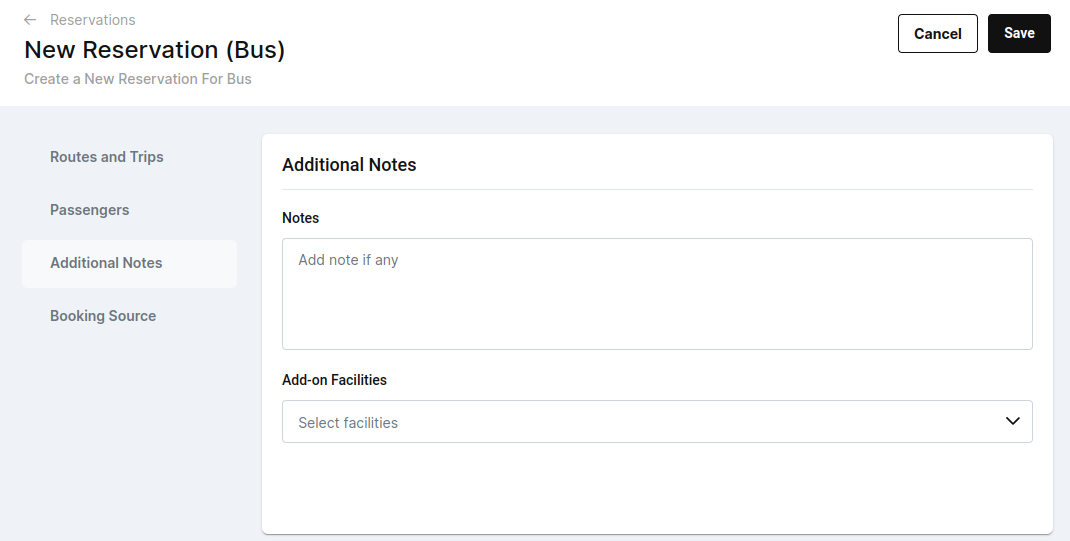
4. Booking Source Tab:
- Booked From:
You'llSelectselecta source of booking from thesourcedrop-downormenu.platform where the reservation was made, such as an online portal or a booking office. Booked By:If someone other than the passenger is making the reservation, you'll enter their name here.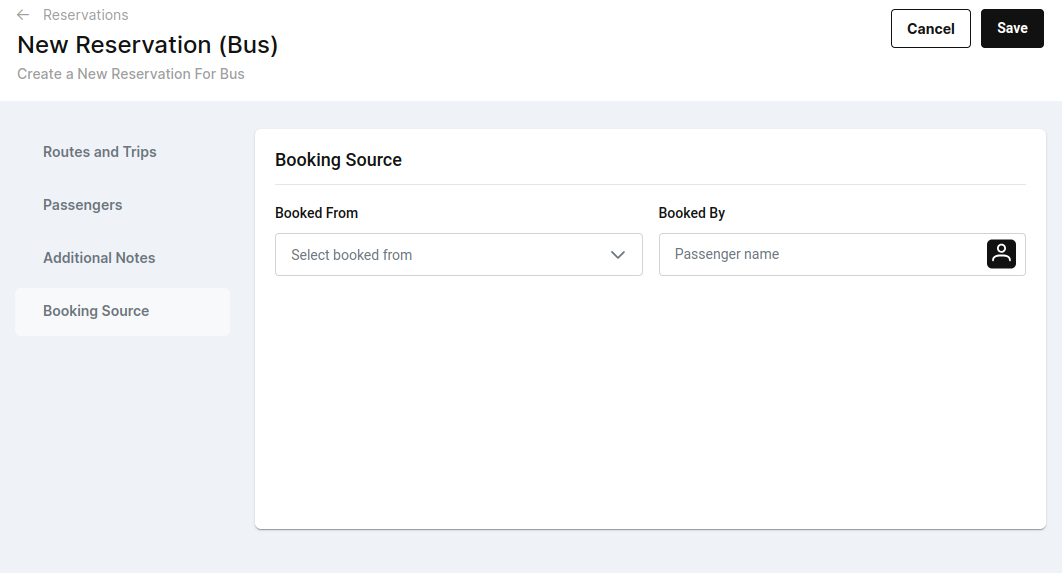
Each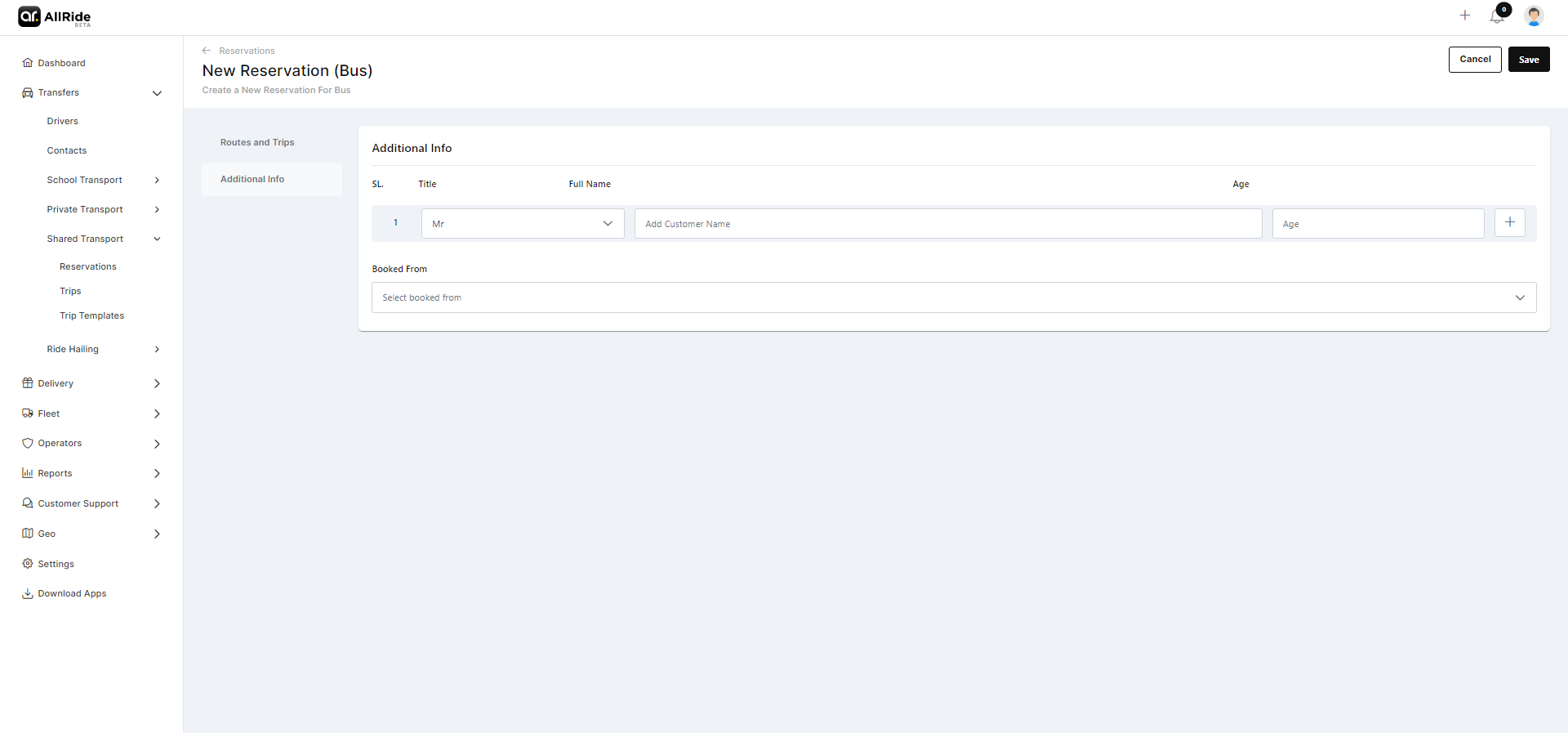
That's containsall specificyou fieldsneed thatto know about bus reservations. If you are crucialstill forhaving creatingsome aconfusion, completeyou andcan accuratecheck bus reservation. It's important to fill in allout the requiredfollowing information in each tab to ensure that the reservation reflects the passengers' needs and travel details accurately. After completing all sections, you'll use the 'Save' button to finalize the booking or 'Cancel' to discard it.video.