
Bus reservation
In the "Bus Reservations" section of the AllRide application, you're provided with a user interface to view and manage bus booking details. Here's an overview of the displayed information:
General Layout
- This screen lists all bus reservations that have been booked through the AllRide platform.
- It provides essential information such as who made the booking, the pick-up and drop-off points, the date and time of pick-up, the current status of each reservation, and other details.

Key Information Columns
- Departure at: Shows the day, date, and time of departure.
- Pick-up Point: Displays the bus station from which the passenger will board the bus.
- Drop-off Point: Displays the passenger's destination bus station.
- Customer: Displays the name of the passenger.
-
Status: Displays the current status of the bus trip.
Reservation details
When you click on a bus reservation, a detailed page is presented, which systematically organizes all pertinent details about the trip:
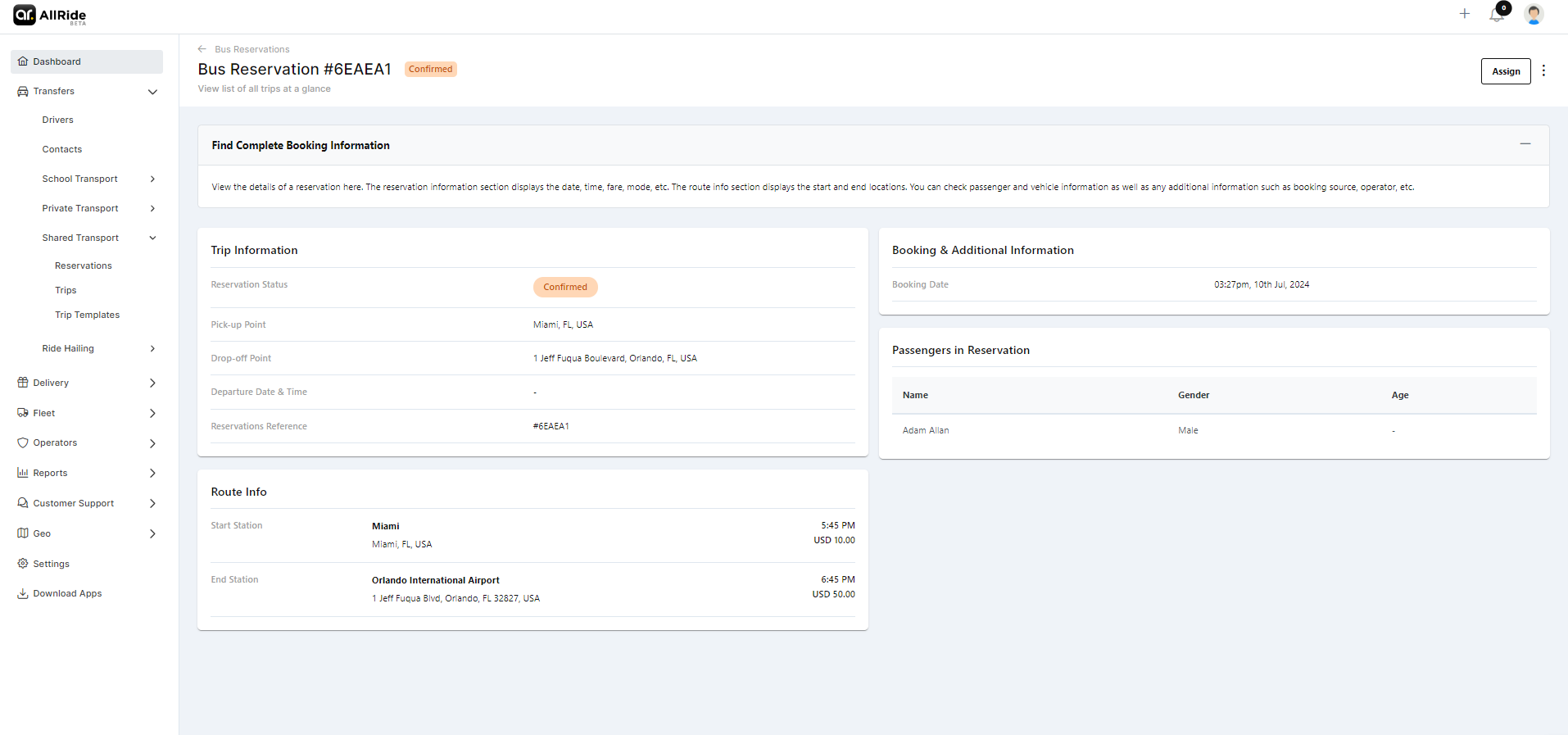
Trip Information:
- Reservation Status: Displays the current status, such as 'Requested' or 'Confirmed'.
- Pick-up point: Displays the bus station from which the passenger will board the bus.
- Drop-off point: Displays the passenger's destination bus station.
- Departure Date & Time: Indicates when the trip is set to start.
- Reservations Reference: A unique code or number is assigned to the reservation for identification.
Route Info:
- Start Station: The initial pickup location for the journey.
- End Station: The final drop-off point for the journey.
Booking & Additional Information:
- Booking Date: When the reservation was logged into the system.
Passengers in Reservation:
- A list showing the names and demographic details of all passengers included in the reservation, such as gender and age. The layout is designed to provide a complete trip overview, allowing for easy review and management of the booking details.
Create reservation
Certainly, let's dive into the details of each tab for creating a new bus reservation:
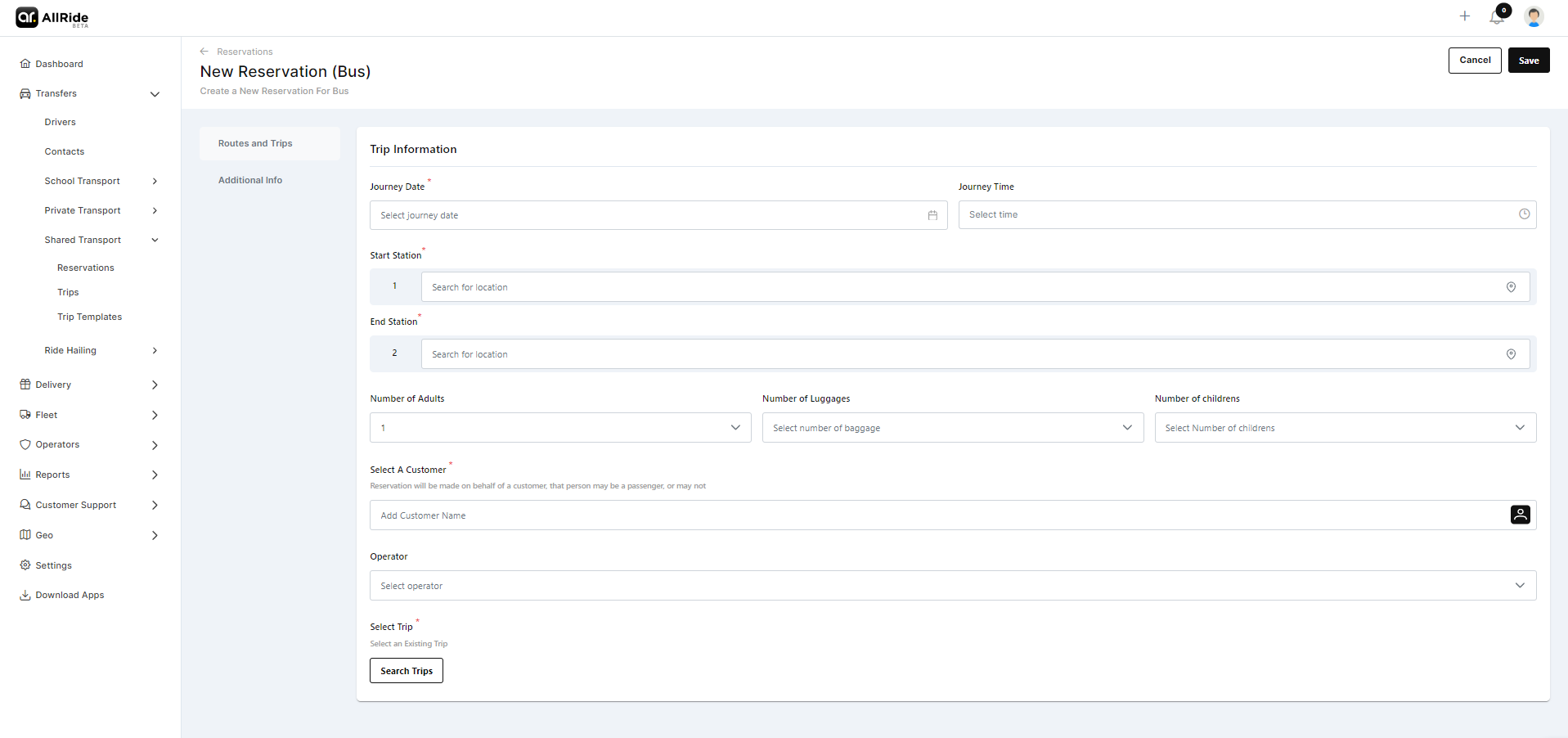
1. Routes and Trips Tab:
- Journey Date: Here, you'll select the date for the bus reservation.
- Journey Time: This is where you'll choose the time for the bus to pick up the passengers.
- Start Station: You can input the starting location and, if necessary, add multiple pick-up or drop-off points.
- Start Station: You can input the starting location and, if necessary, add multiple pick-up or drop-off points.
- Number of Adults: Input the number of adult passengers.
- Number of Luggage: Input the luggage number.
- Number of children: Input the number of children.
- Select A Customer: Select a customer from the popup menu
- Operator: Select an operator
- Select Trip: If this reservation is part of an existing trip, you'll link it by selecting from available trips.
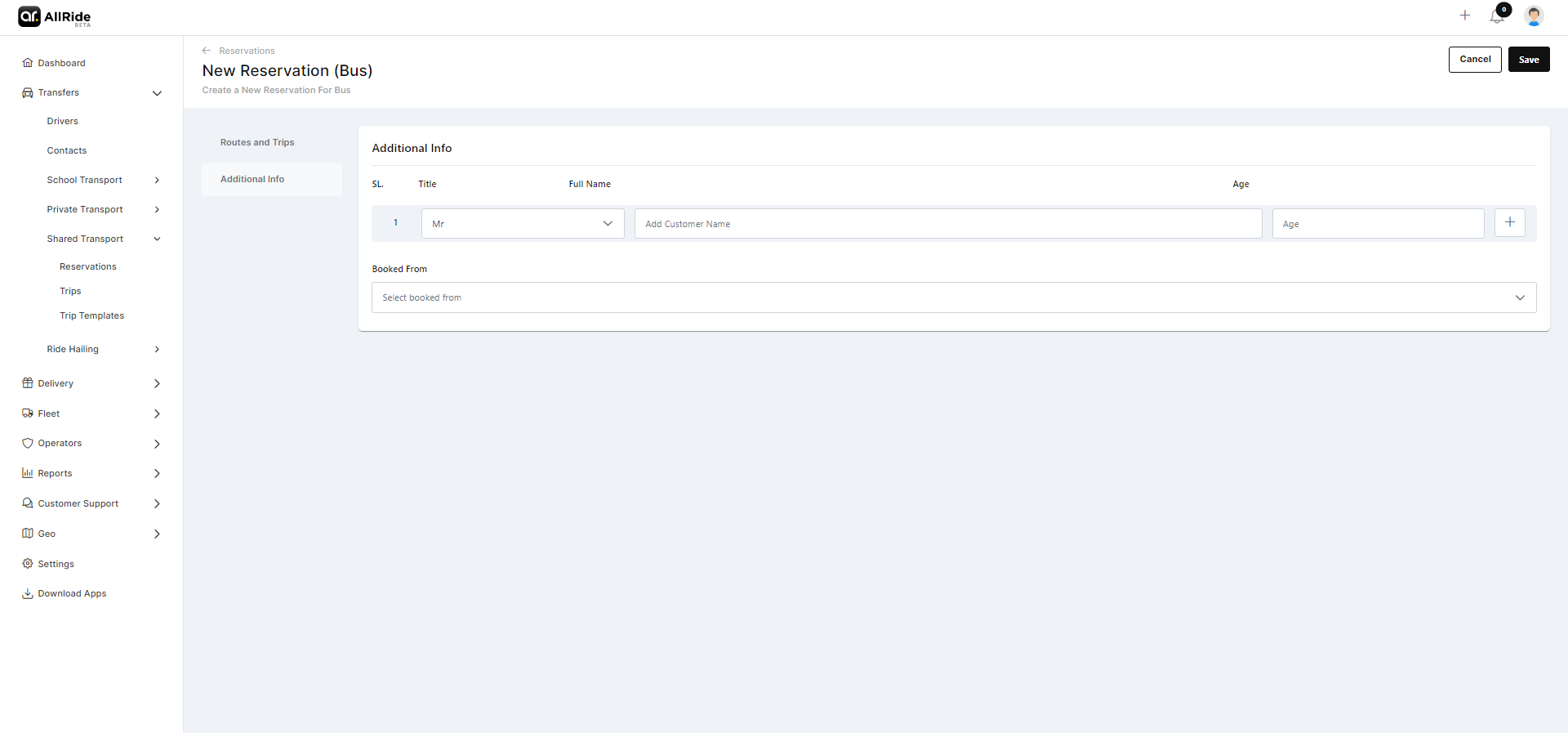
2. Additional Info:
- Passenger name and age: Input the name and age of the passenger. You can add multiple passengers using the '+' button.
- Booked From: Select a source of booking from the drop-down menu.
That's all you need to know about bus reservations. If you are still having some confusion, you can check out the following video.