
Generic settings
The Generic Settings section within the Settings Module is designed to allow administrators to configure essential, system-wide settings that affect the overall operation and user interface of the platform.
The Generic Settings is divided into 4 sub-sections -
- System Settings
- App Settings
- Content Settings
- Booking form Settings
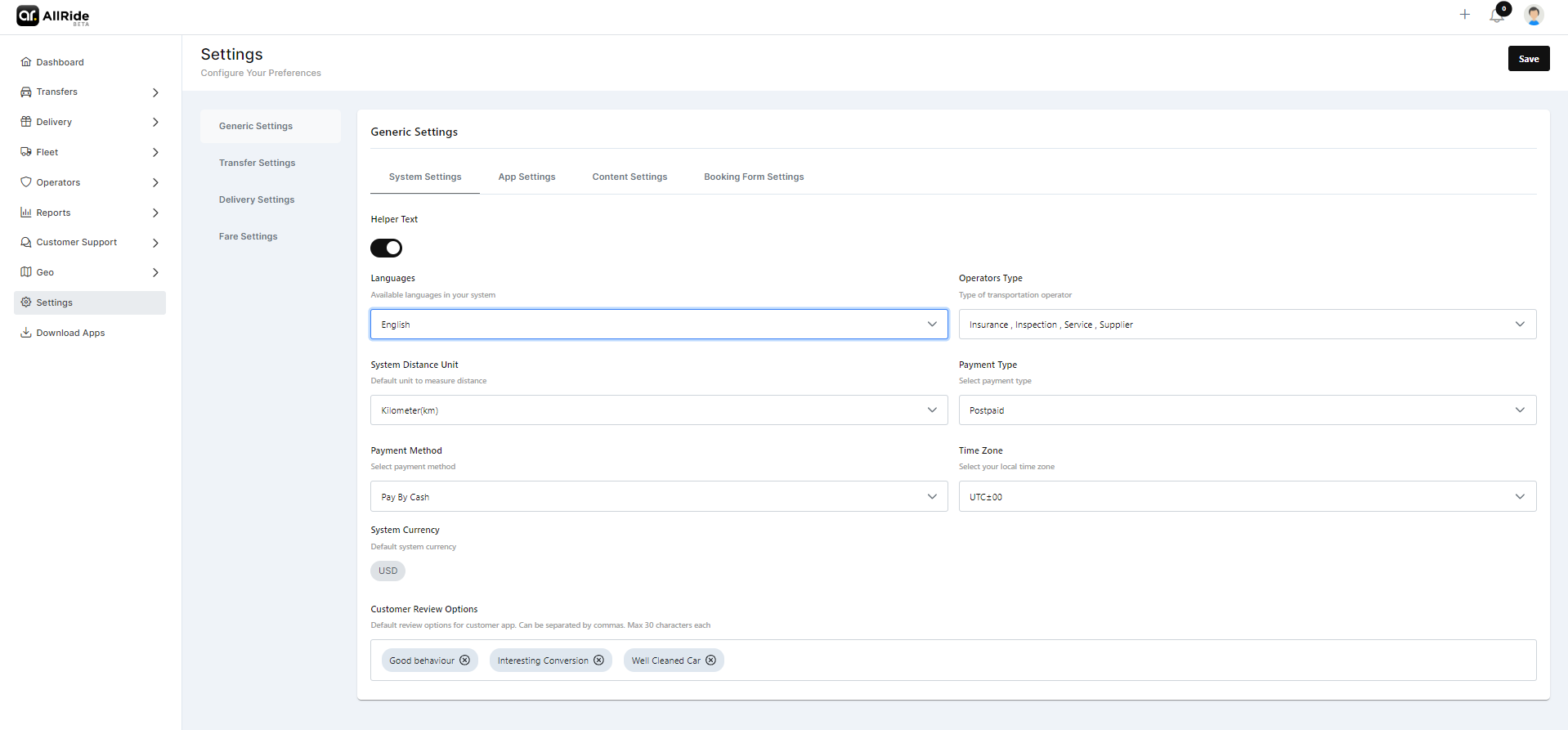
System Settings -
- Helper Text: Helper text functionality is designed to assist users by providing additional context or instructions. You can toggle it on when you need it.
- Languages: Administrators can choose which languages are available for the system, ensuring that the interface can use the platform in preferred languages and for communication purposes.
- Operators Type: This dropdown allows the selection of the types of transportation operators recognized within the system, which could range from taxis and buses to ride-sharing services and more.
- System Distance Unit: Here, the default unit of measurement for distances within the system is selected, such as kilometers or miles, according to regional preferences or operational standards.
- Payment Type: Here you can specify the type of payment, for example, 'prepaid'.
- Payment Method: Here you can specify the mode of payment.
- Time Zone: This setting enables the system to operate under the local time zone, which is crucial for accurate scheduling and time stamping throughout the platform.
- System Currency: The platform's default currency setting is configured here, allowing financial transactions and fare displays to be standardized in a currency like the US Dollar, Euro, or any other applicable currency.
- Customer Review Options: This field specifies the default options available for customer reviews within the app. The administrator can set what parameters or criteria customers can use to rate services, limited to a certain number of characters and separated by commas for clarity.
App Settings -
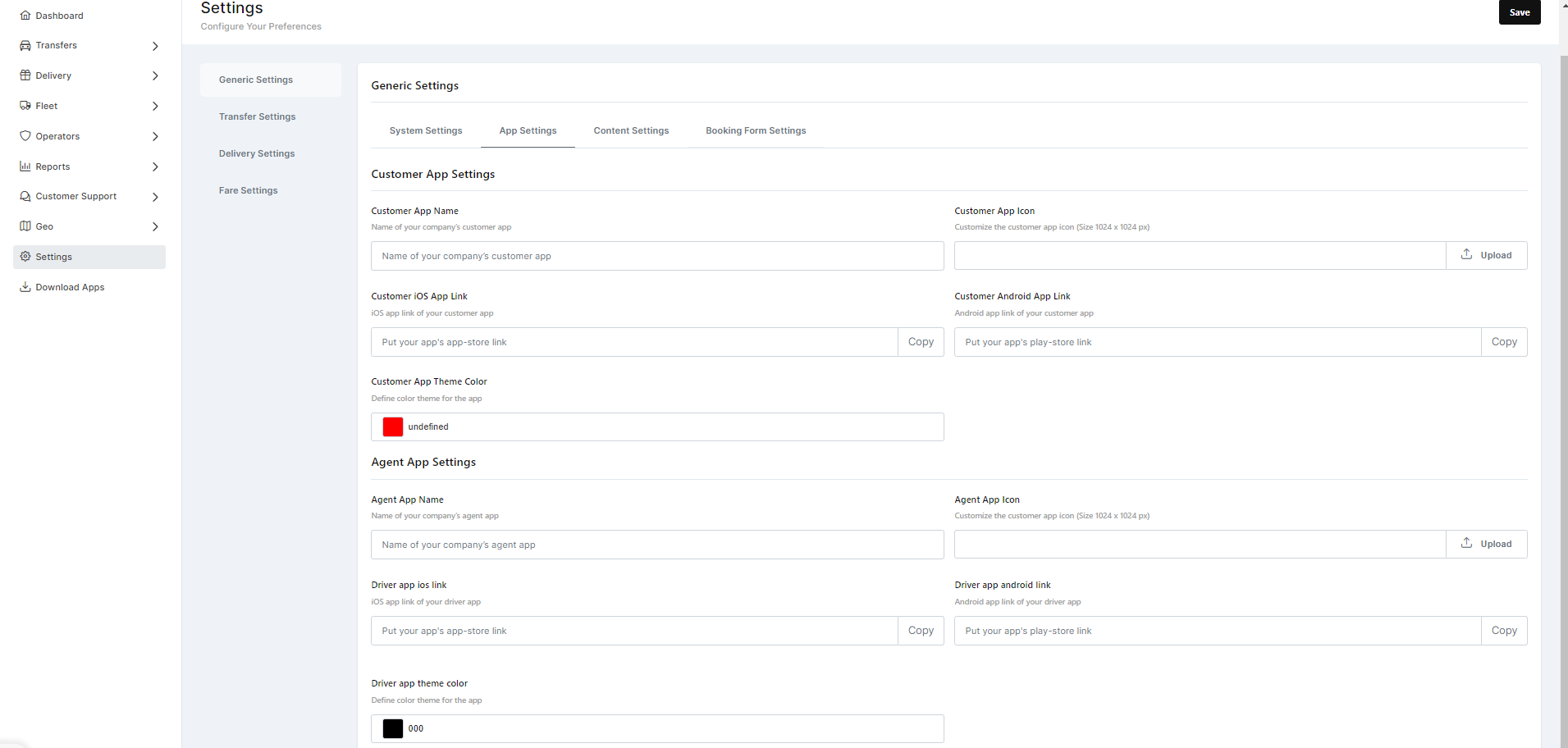
Customer App Settings :
- Customer App Name: This field allows for the input of the name of the customer application as it will appear to users.
- Customer App Icon: Here, administrators can upload or change the app icon, which represents the visual identity of the app.
- Customer iOS App Link: Provides a field for the URL where iOS users can download the customer app, often linked to the App Store.
- Customer Android App Link: Similarly, this is for the URL where Android users can download the customer app from the Google Play Store.
- Customer App Theme Color: Administrators can select a color that will define the theme of the customer app, usually aligned with the branding color scheme.
Agent App Settings :
- Agent App Name: Just like the customer app, this is where the name of the agent application is specified.
- Driver App Icon: This upload field is for the driver or agent app icon, which can be customized to differentiate it from the customer app if necessary.
- Driver iOS App Link: Administrators provide the link for the iOS version of the agent app.
- Driver Android App Link: This is for the link to the Android version of the agent app.
- Driver App Theme Color: This setting allows for the customization of the theme color for the agent app, which could be distinct from the customer app to avoid confusion.
Content Settings -