
Cab reservation
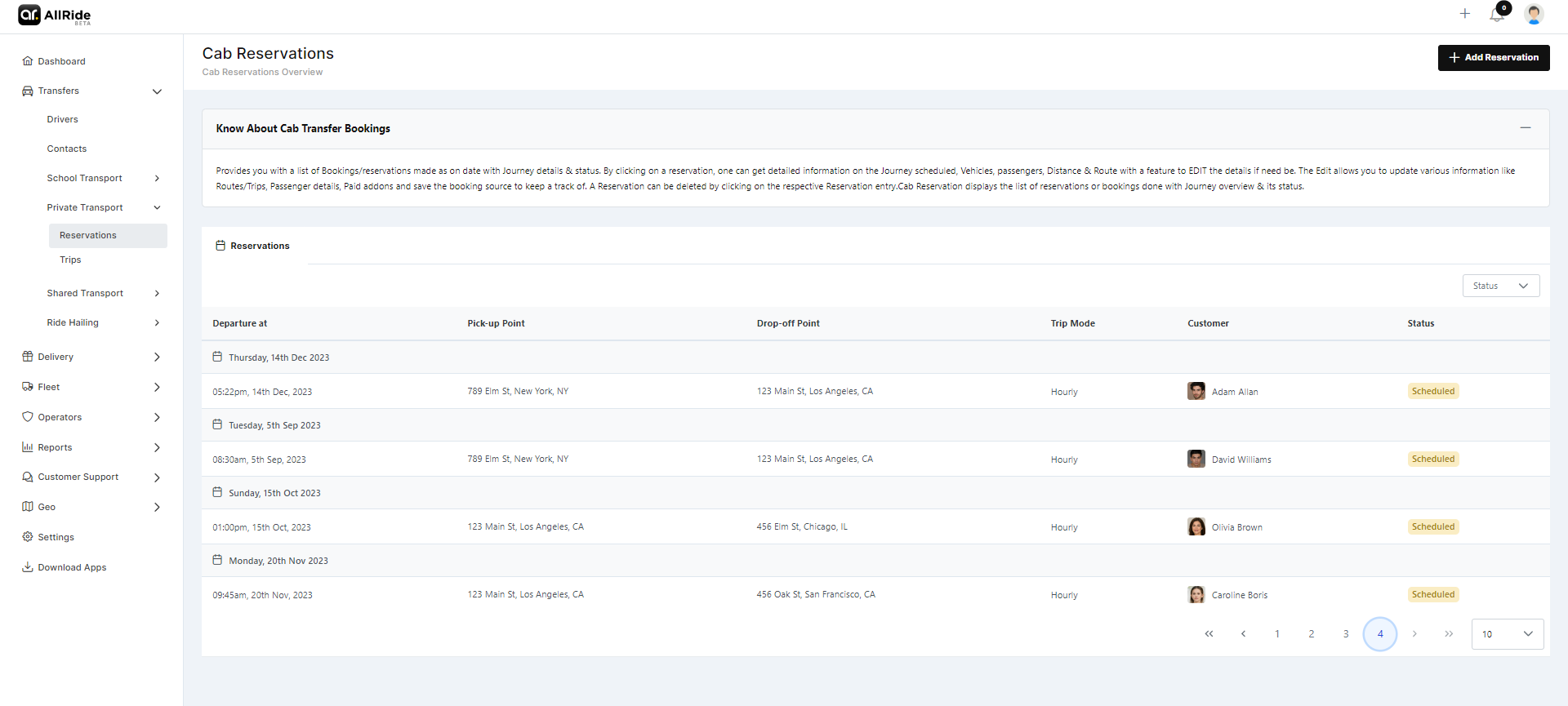
The "Cab Reservations" screen presents customers with their scheduled cab trips. Each entry in the list corresponds to an individual cab reservation, providing essential details of the journey at a glance.
Functionality for Customers
- Customers can review all their upcoming and past cab bookings on this screen.
- Reservations show who made the booking, where the cab will pick up and drop off, the departure time, and the status of the trip.
- The status informs customers whether a trip is still planned (Scheduled) or has been called off (Cancelled).
- Customers can interact with this screen to get more information about each trip by selecting a specific booking, which could reveal further details such as the cab number, the driver's name, or the fare estimate.
- A feature is available to add new reservations, allowing customers to schedule new trips when needed.
- For convenience, a pagination feature is in place to navigate through multiple bookings.
Customer Experience
- The design is intuitive, enabling customers to quickly identify the information they need regarding their cab reservations.
- The information provided helps customers plan their time accordingly and manage their travel arrangements with ease. A simple, straightforward interface ensures that customers can effortlessly understand their travel schedule, upcoming trips, and any changes to their bookings.
Detailed View
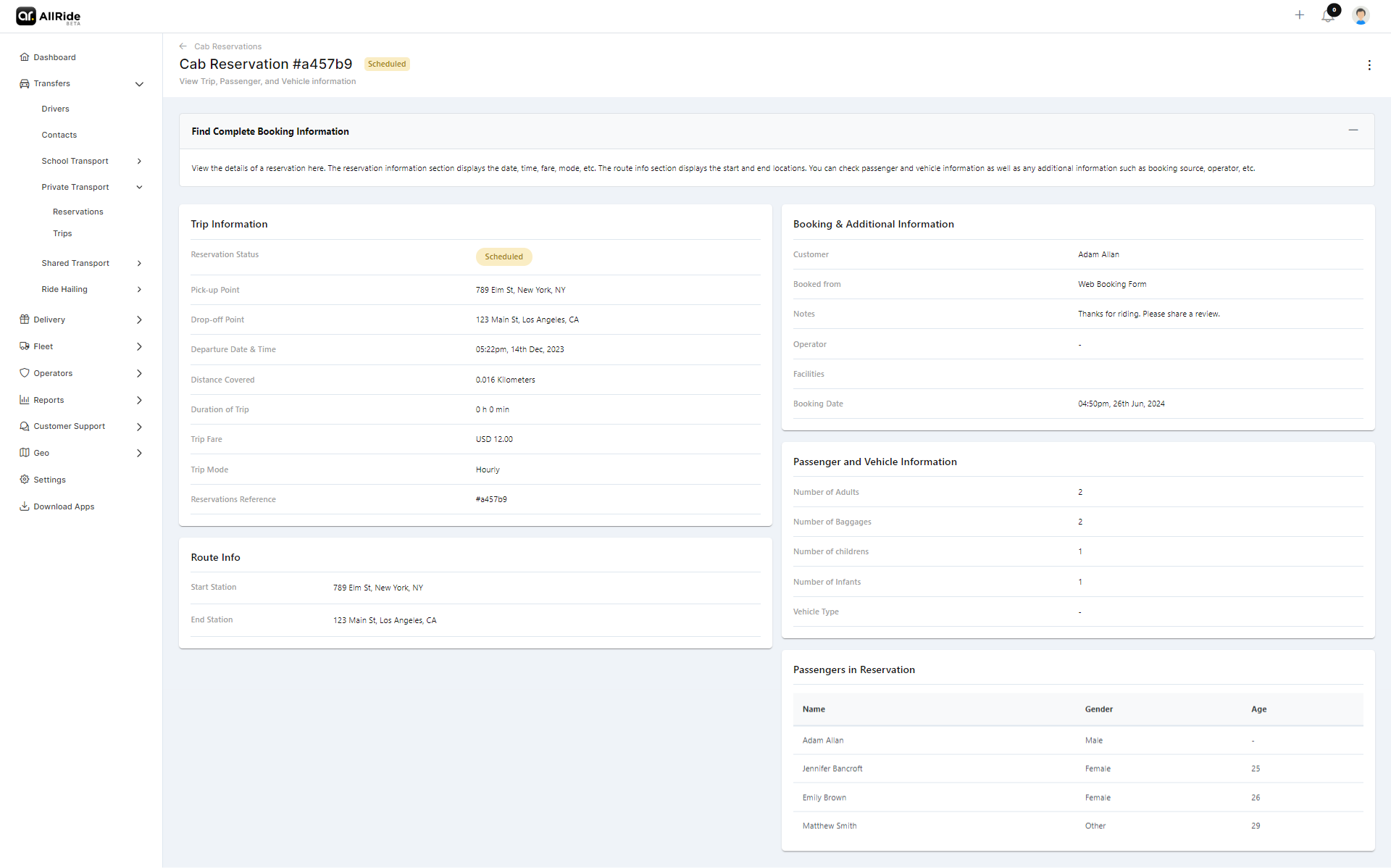
When a customer selects a specific cab reservation, they are presented with a detailed overview of the booking.
-
Trip Information:
- Reservation Status: Current status of the booking (e.g., Scheduled, Cancelled, Completed).
- Pick-up point: Location for pick-up.
- Drop-off point: Location for Drop-off.
- Departure Date & Time: Exact start time and date of the trip.
- Distance Covered: Total kilometers to be traveled during the trip.
- Duration of Trip: Total expected travel time.
- Trip Fare: The cost associated with the trip.
- Trip Mode: Type of journey (e.g., One Way, Round Trip).
- Reservations Reference: A unique identifier for the booking.
-
Route Information:
- Start Station: Starting point of the trip.
- End Station: Destination point of the trip.
-
Booking & Additional Information:
- Customer: Name of the person who made the booking.
- Booked from: Platform or service used for booking (e.g., Website, Mobile App).
- Booking Date: Date when the trip was booked.
- Notes: Any additional notes related to the booking.
- Operator: The company or service provider managing the trip.
- Facilities: List of amenities or services provided during the trip.
-
Passenger and Vehicle Information:
- Number of Adults: Count of adult passengers.
- Number of Baggage: Total pieces of baggage included.
- Number of Children: Count of children, if any.
- Number of Infants: Count of infants, if any.
- Vehicle Type: The type of vehicle assigned for the trip.
-
Passengers in Reservation:
- Name: Name(s) of the passengers.
- Gender: Gender of each passenger.
- Age: Age of each passenger.
Add reservation
When a customer clicks the "Add Reservation" button for a cab, they are taken to a form where they can input all the necessary details for their new cab reservation. Here’s a detailed walkthrough of the process:
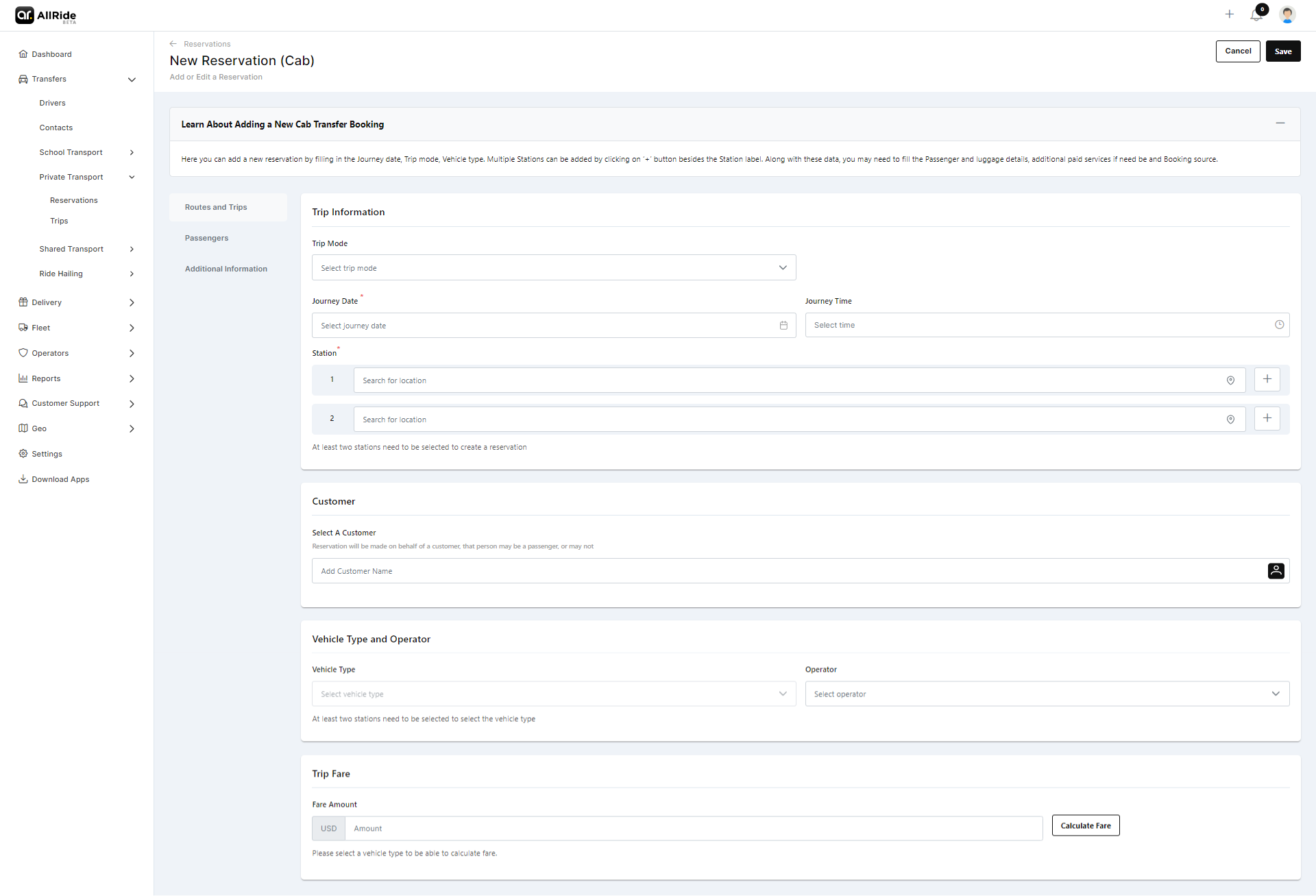
Learn About Adding a New Cab Transfer Booking: This introductory section provides customers with a brief explanation of the booking process and what information is required. It outlines that the form will capture details such as journey date, trip mode, vehicle type, and stations. It also mentions that additional passenger and luggage details, any extra paid services, and the booking source need to be filled in.
Form Sections and Fields:
1. Routes and Trips Tab:
- Journey Date: Customers will choose the date for their cab reservation. This is usually done via a calendar picker for convenience.
- Journey Time: Here, users specify what time they need to be picked up, using a time selection tool.
- Trip Mode: A dropdown menu allows customers to select the type of trip they are booking, such as one-way, round trip, or hourly hire.
- Stations: This is where the start and end points of the journey are entered. If there are multiple stops along the route, users can add them by clicking a '+' button beside the station field.
- Customer: Select a customer from the popup menu.
- Vehicle Type and Operator: Provide the vehicle type and the corresponding operator.
- Trip Fare: Click on 'Calculate Fare' to automatically calculate the fare. Please note that vehicle type must be provided earlier for this to work.
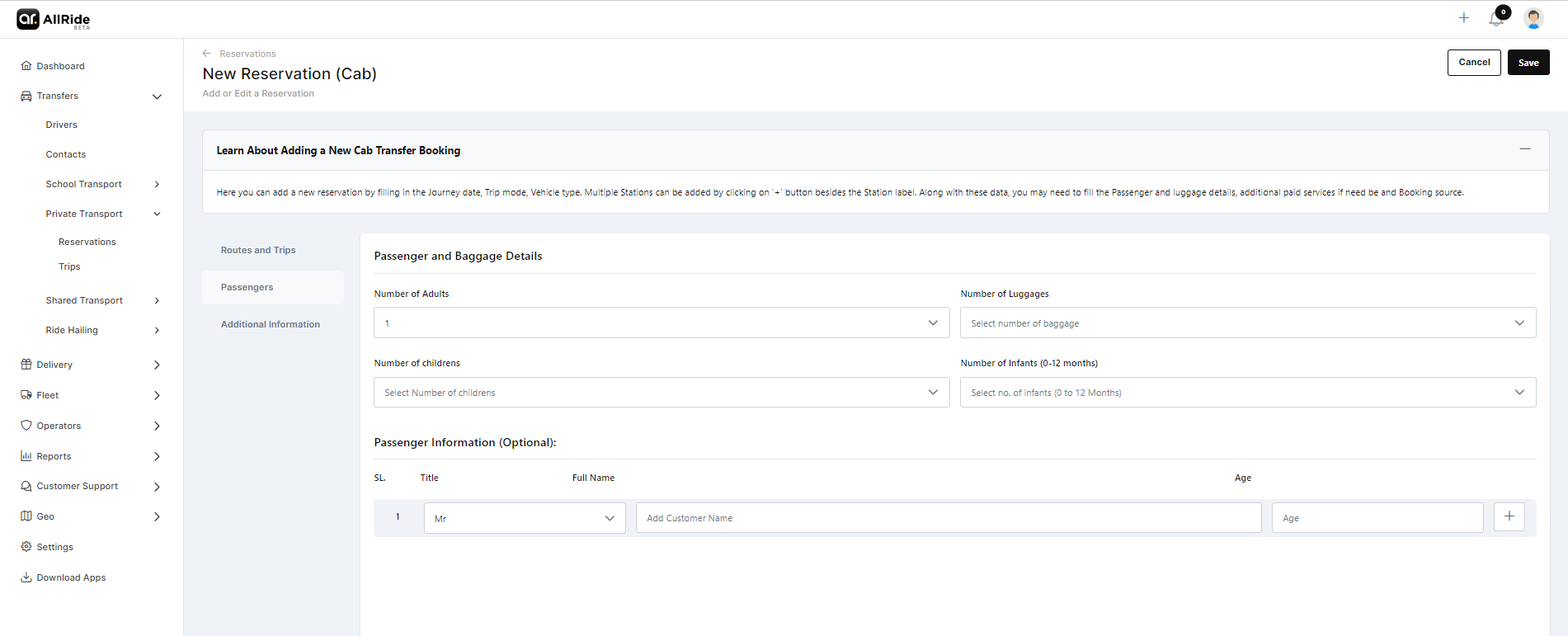
2. Passengers Tab:
- Number of Adults/Children/Infants/Luggage: Dropdown menus allow the customer to indicate how many people are traveling along with their age categories, and luggage, which could affect the type of vehicle needed.
- Passenger Information: Passenger names and their corresponding ages can be provided. However, It's optional and can be avoided.
3. Additional Notes Tab:
- Booked From: A dropdown where the customer selects the platform or method they used to make the reservation (e.g., mobile app, online booking system, telephone).
- Notes: This free-form text field is for any extra details the customer feels are important to note. These could be preferences like a desire for a quiet ride, requests for specific amenities like a car seat, or alerts about potential delays at the pickup point.
- Add-on Facilities: Selective Additional facilities can be chosen from here.
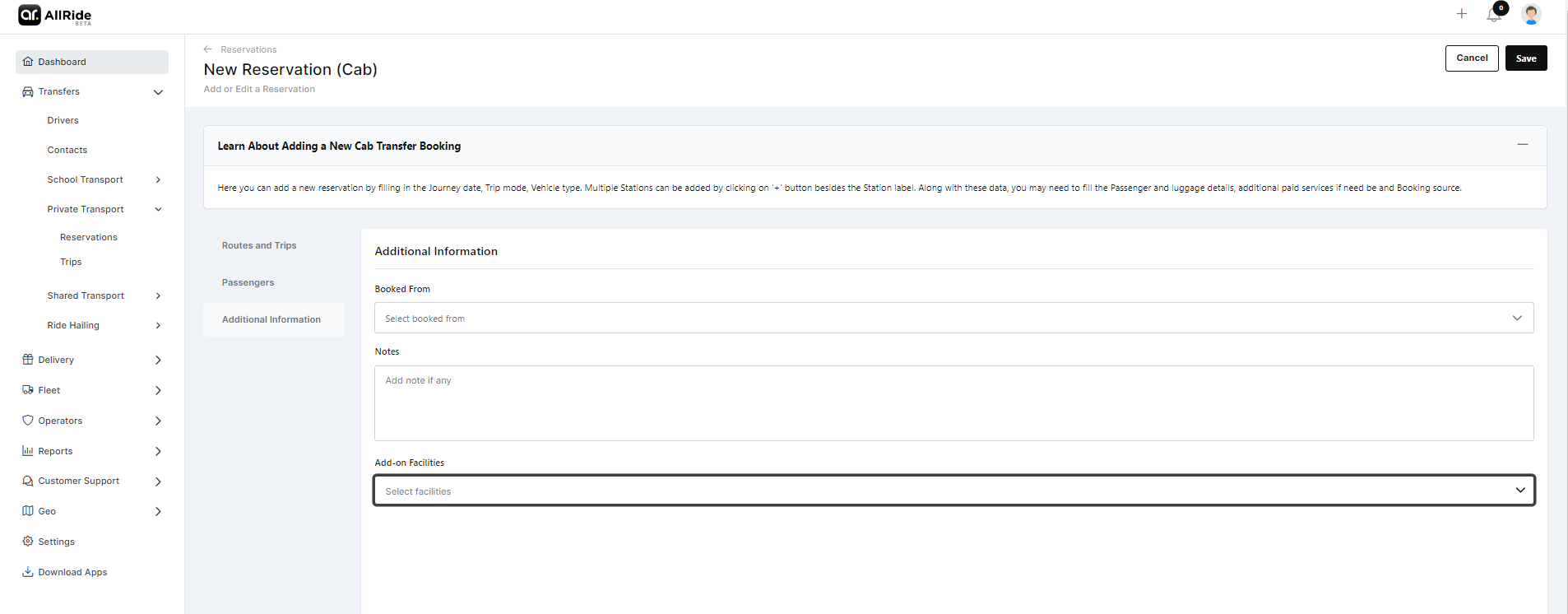
Click on 'Save' to successfully save the reservation.