AllRide Partner App
The AllRide Partner App is specifically designed to provide drivers with a robust, efficient, and user-friendly platform to manage their rides and maximize their productivity. Here’s a detailed overview of the features and functionalities tailored for cab transport.functionalities.
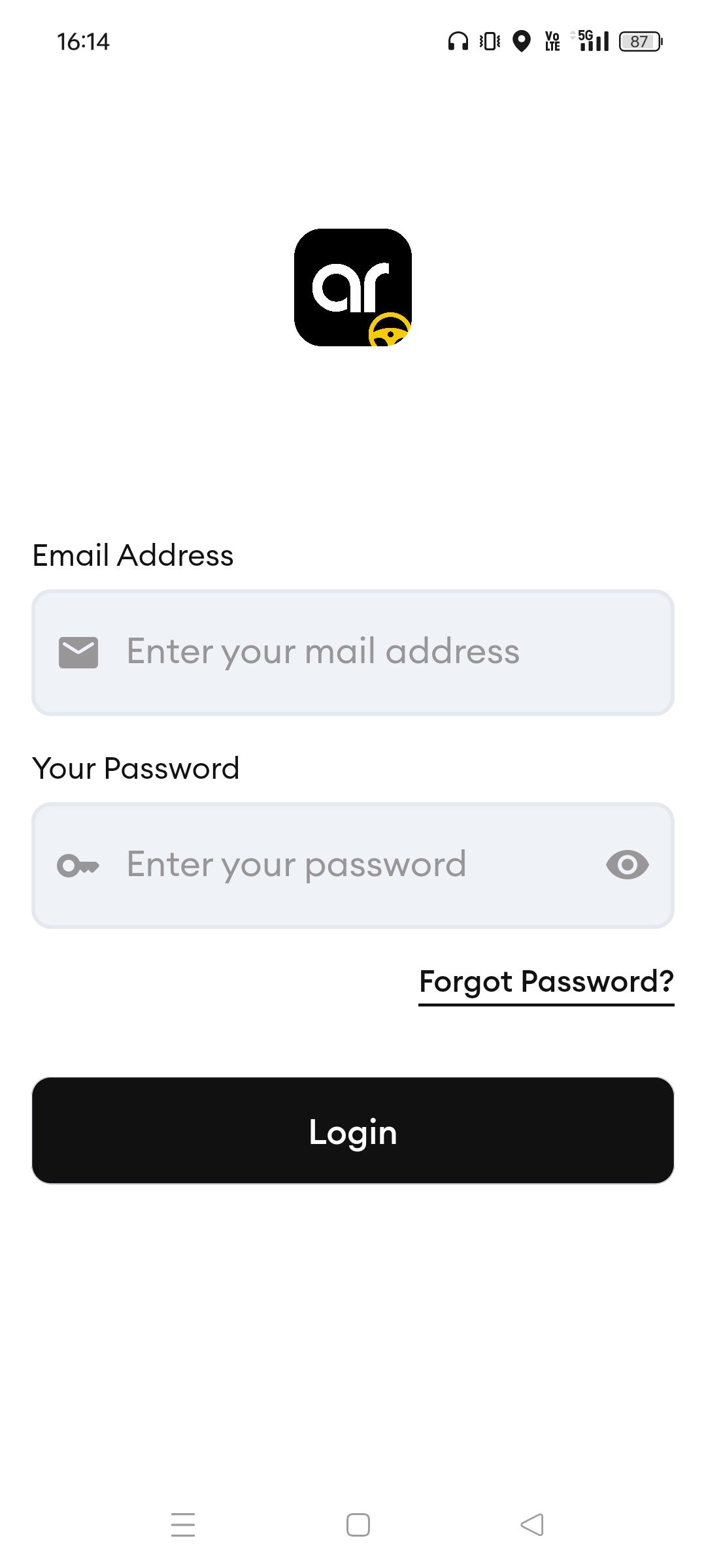
Login screen
Using your credentials log in to the app. Provide your email ID and password.
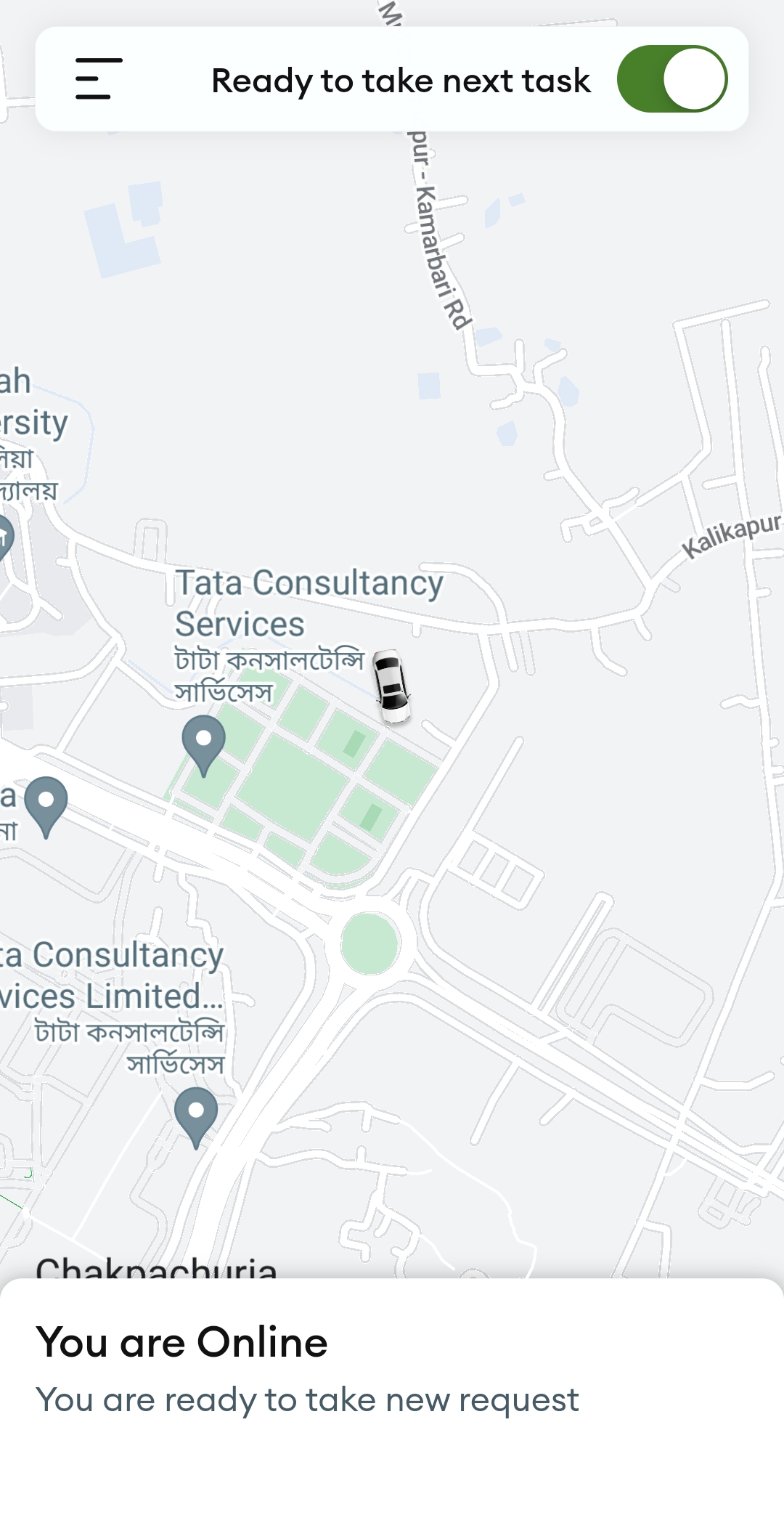
Home screen
On the home screen, there will be a map displaying the current location of the driver's vehicle along with an option "Ready to take next task". Upon toggling it on, the driver will be able to receive trips in real-time.
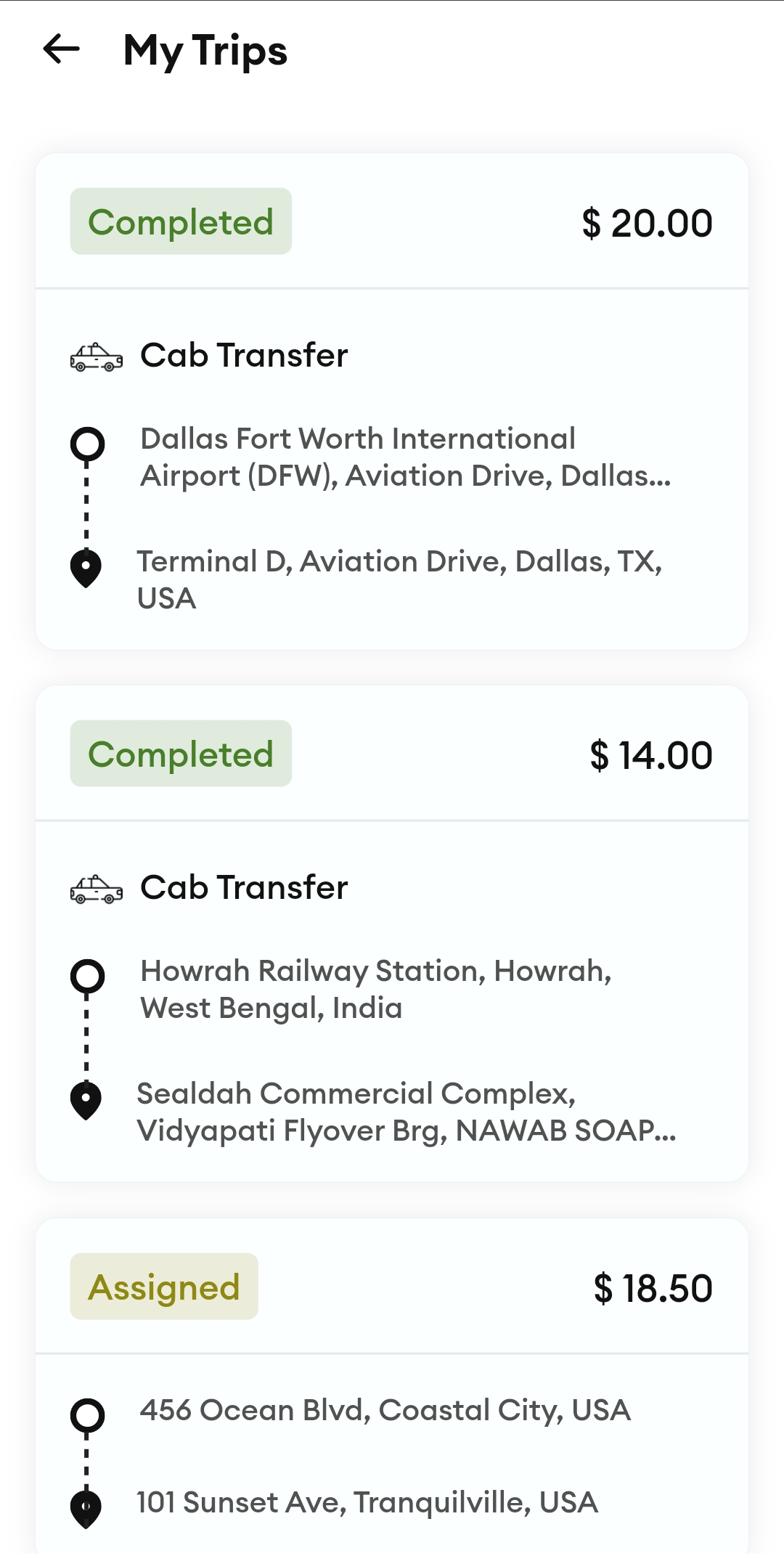
My Trips
Workflow of the AllRide Partner
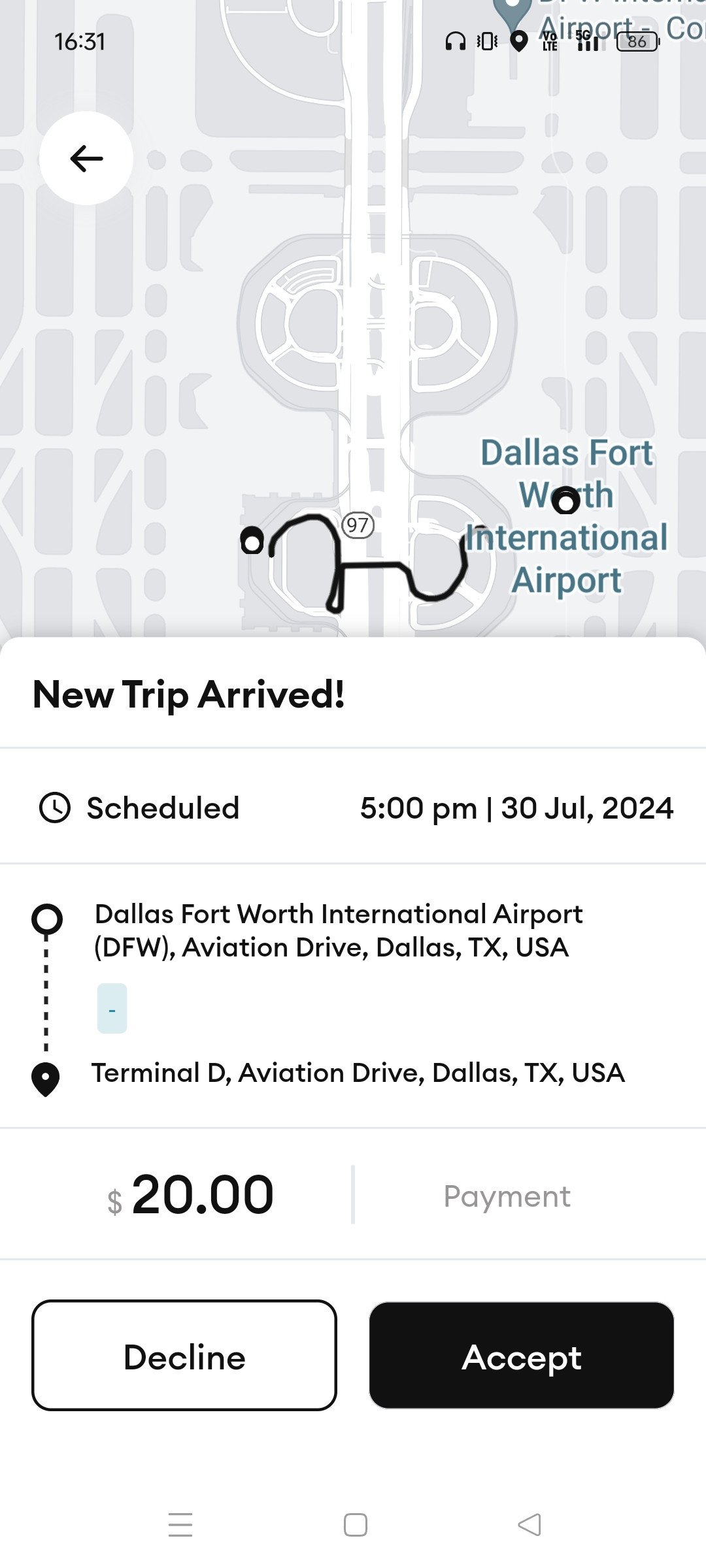
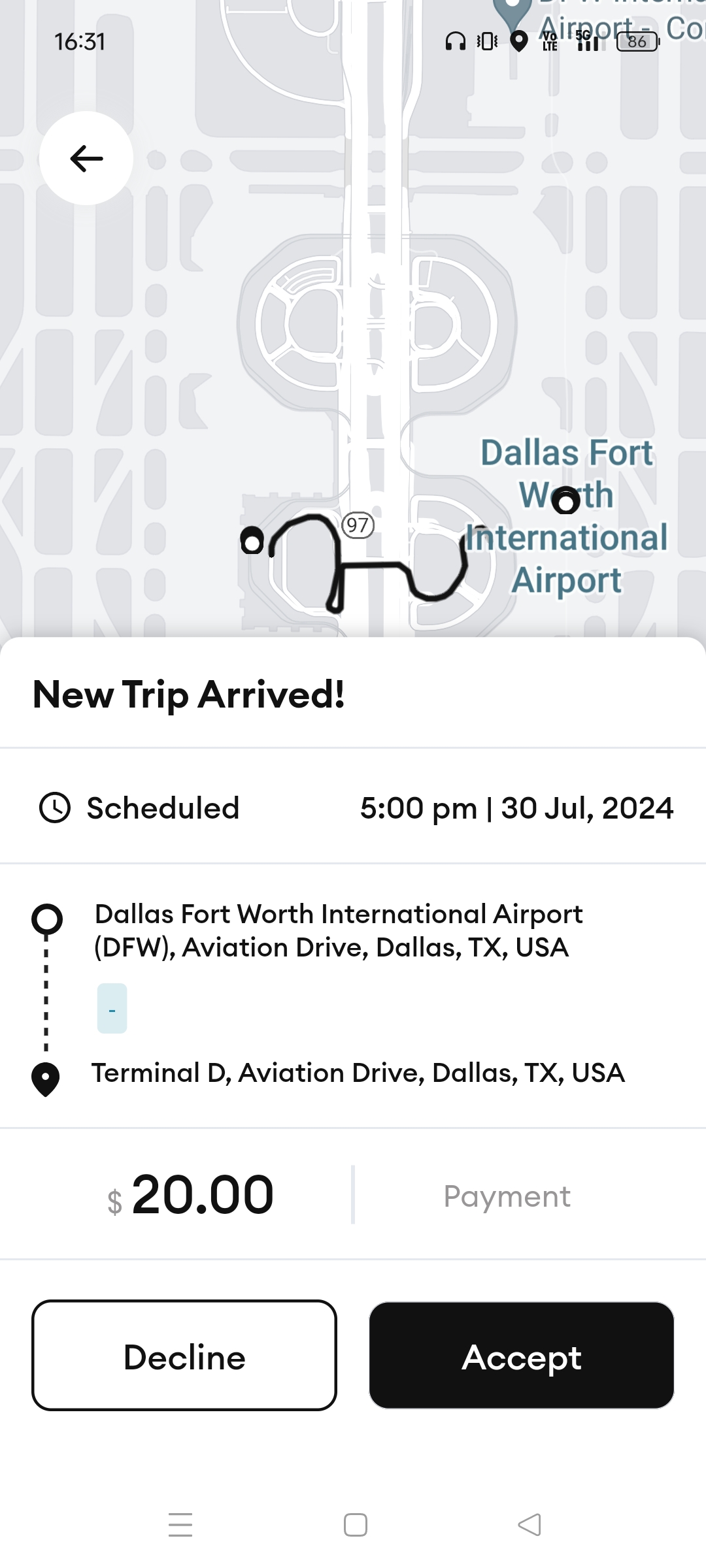
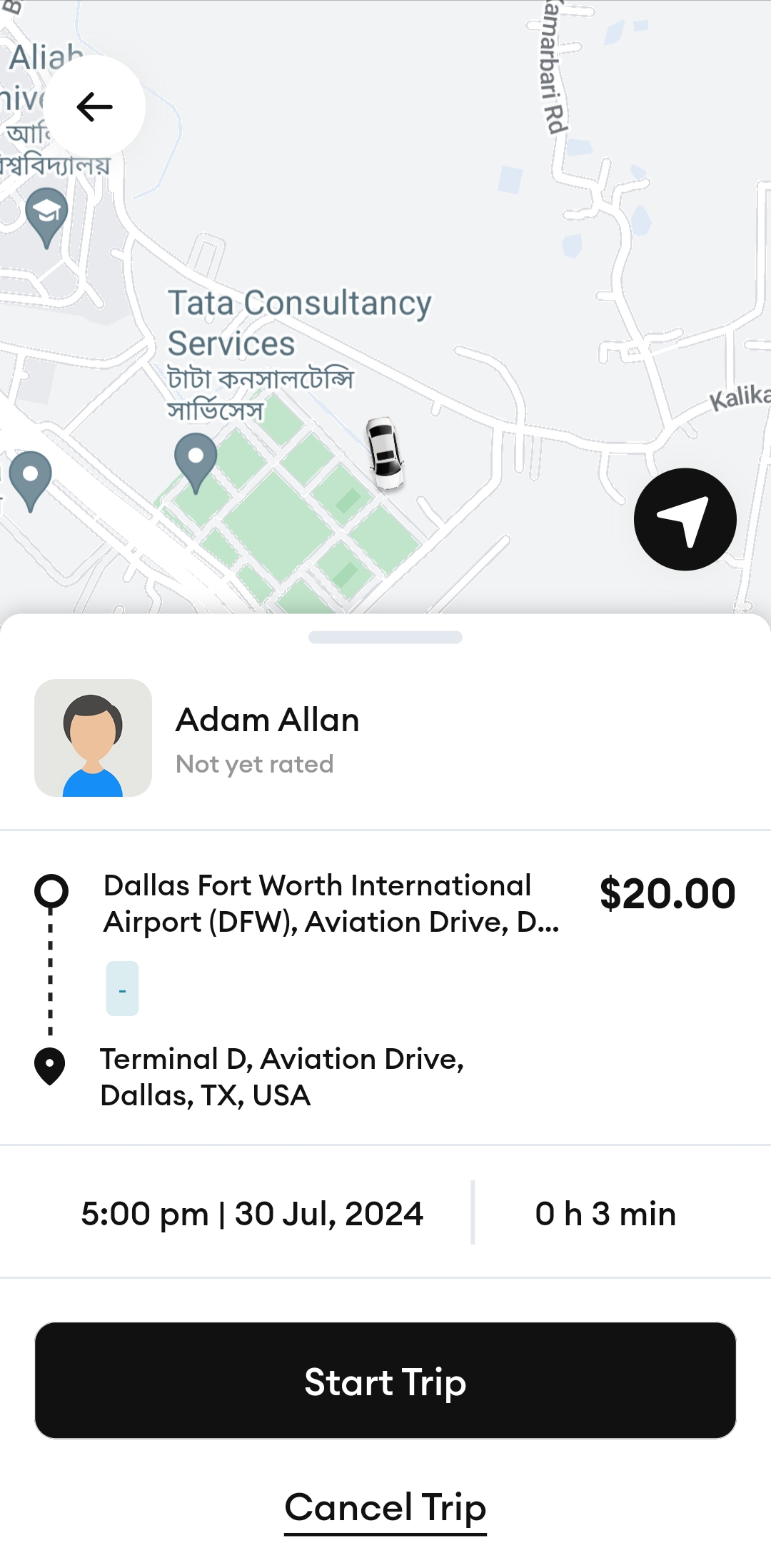
- Upon tapping on an assigned trip, the driver will have the option to accept or decline the trip. The date, time, pickup, dropoff location, and fare will be shown below the map interface.
- Upon accepting the trip, an appropriate prompt will be shown saying "Trip Accepted Successfully".
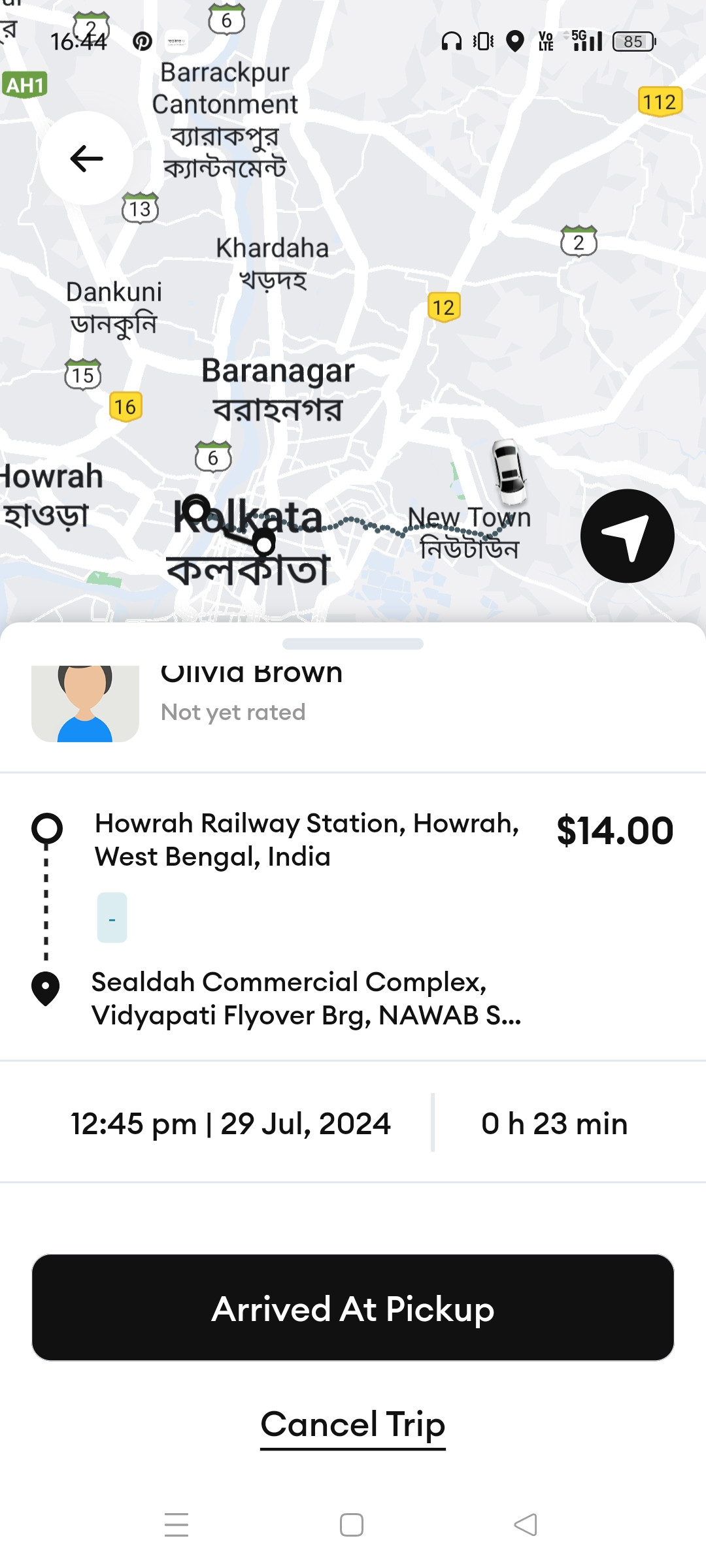
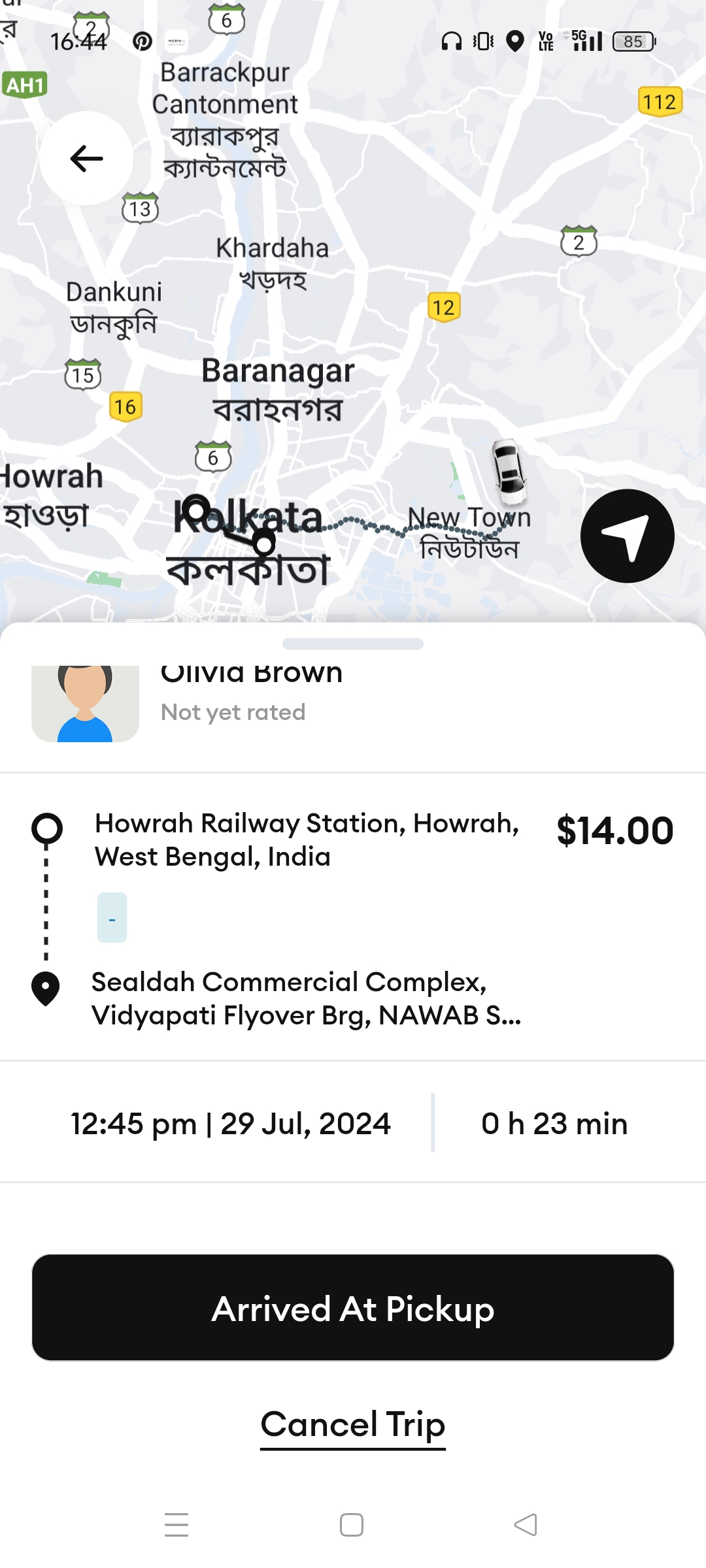
- Upon reaching the pickup location the driver must tap on "Arrived at pickup".
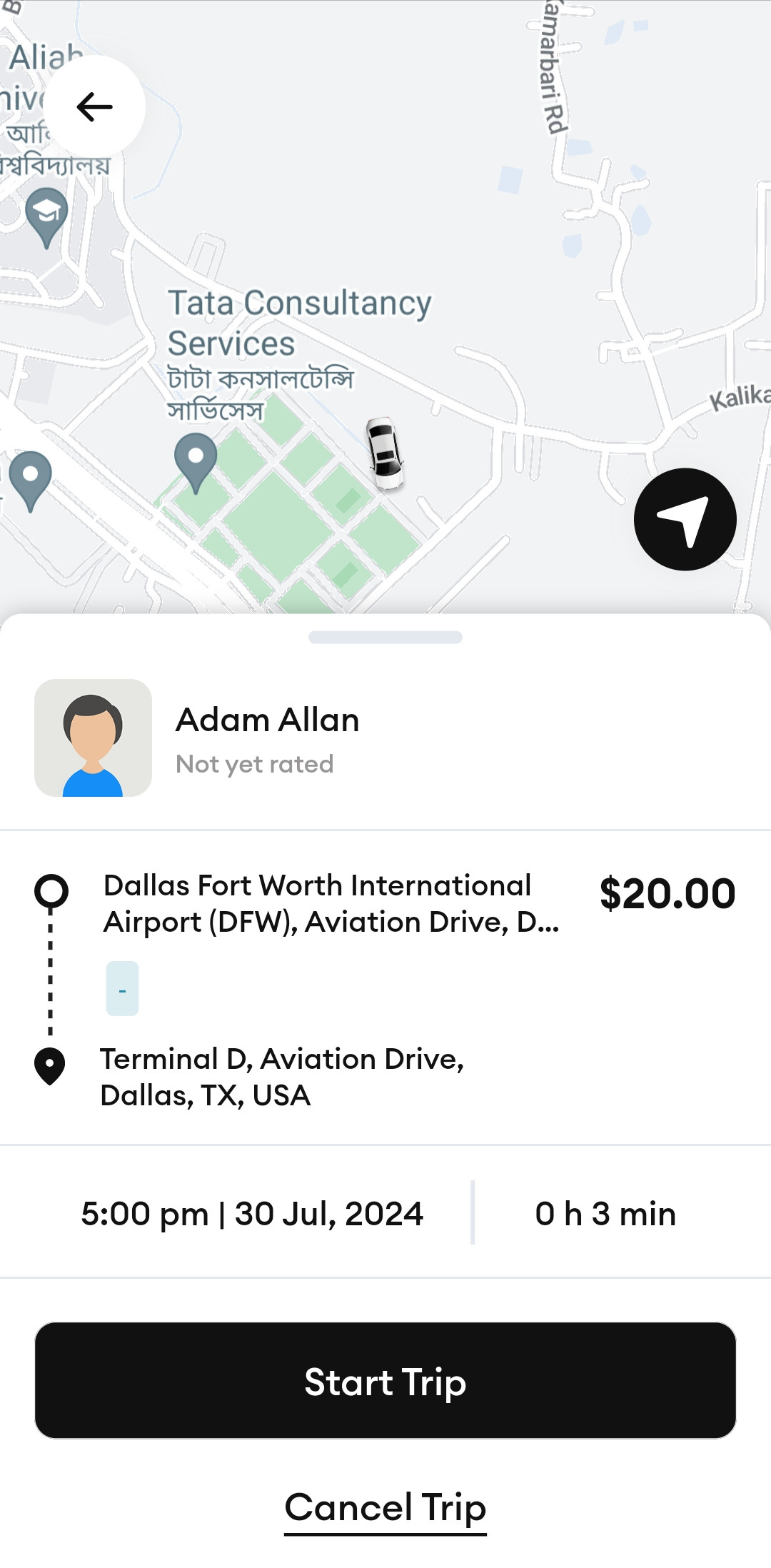
- After the passenger boards the car/bus, the driver must tap on "Start Trip". The driver can also "Cancel Trip" but an appropriate reason must be provided.
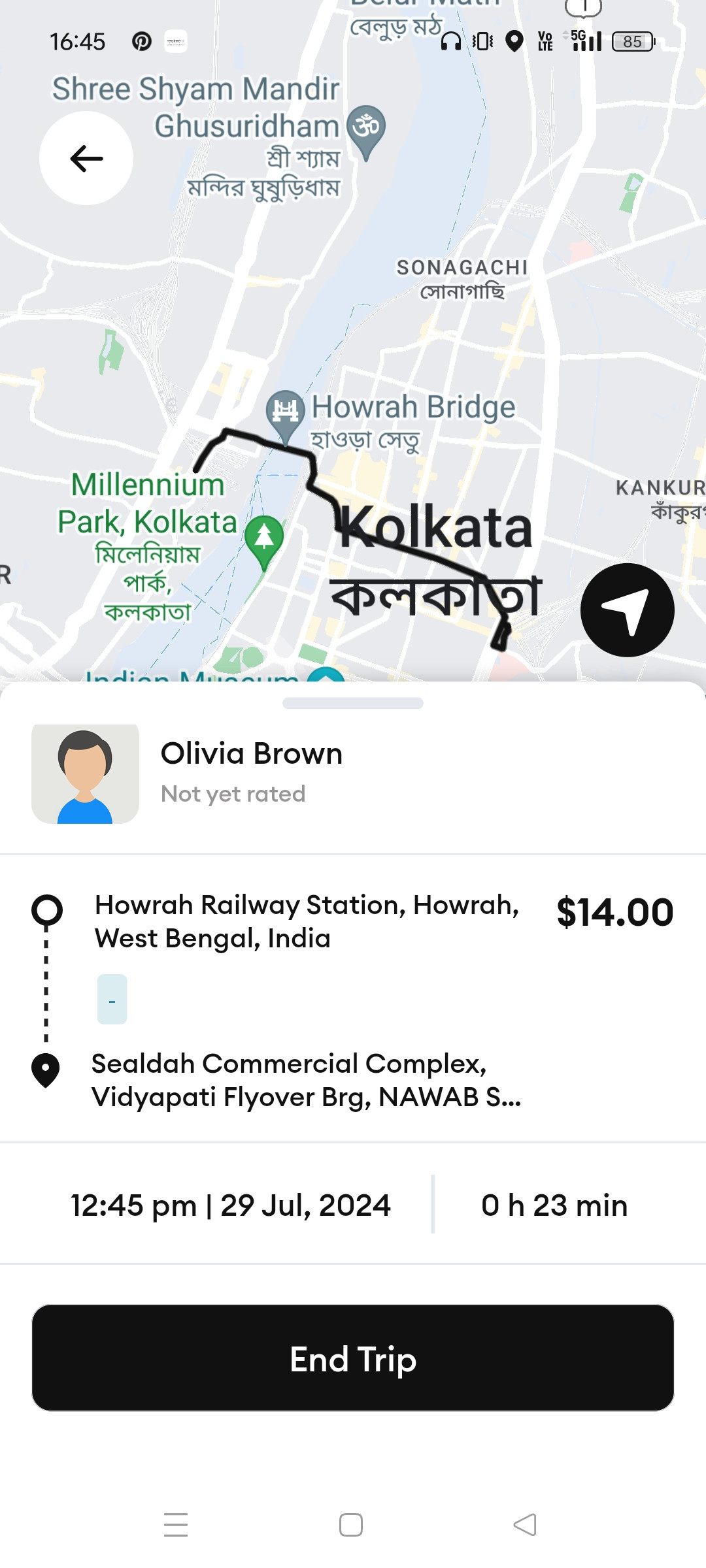
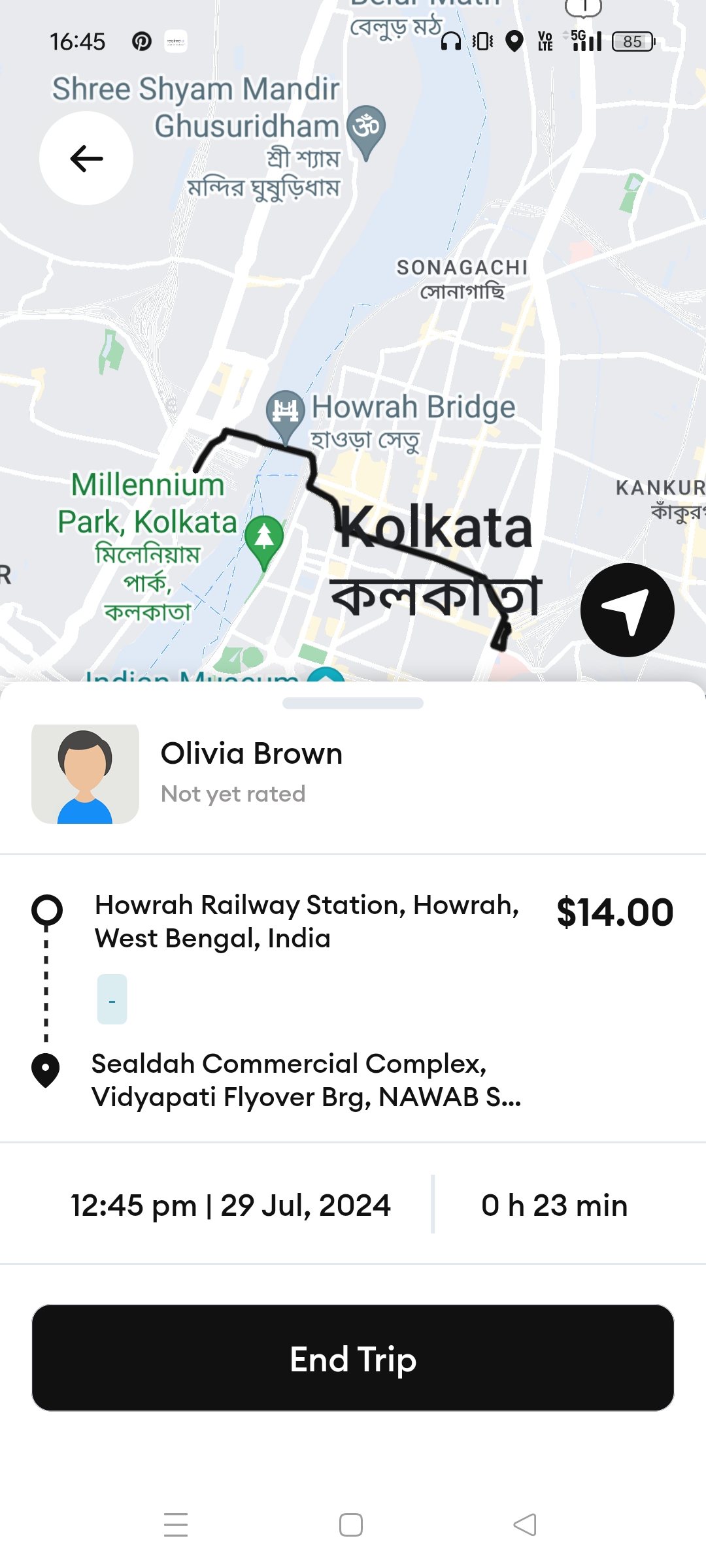
- Upon reaching the destination, the driver must tap on "End Trip".
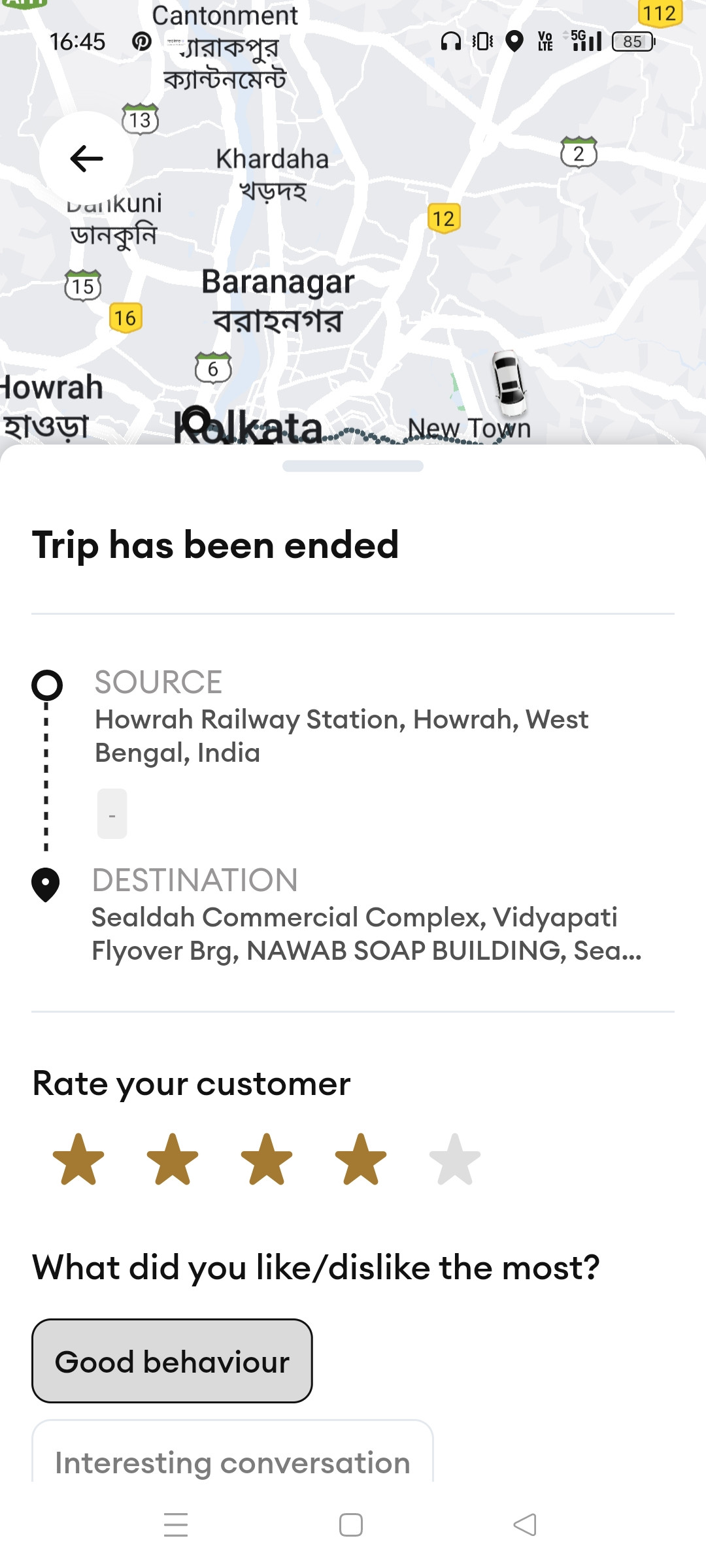
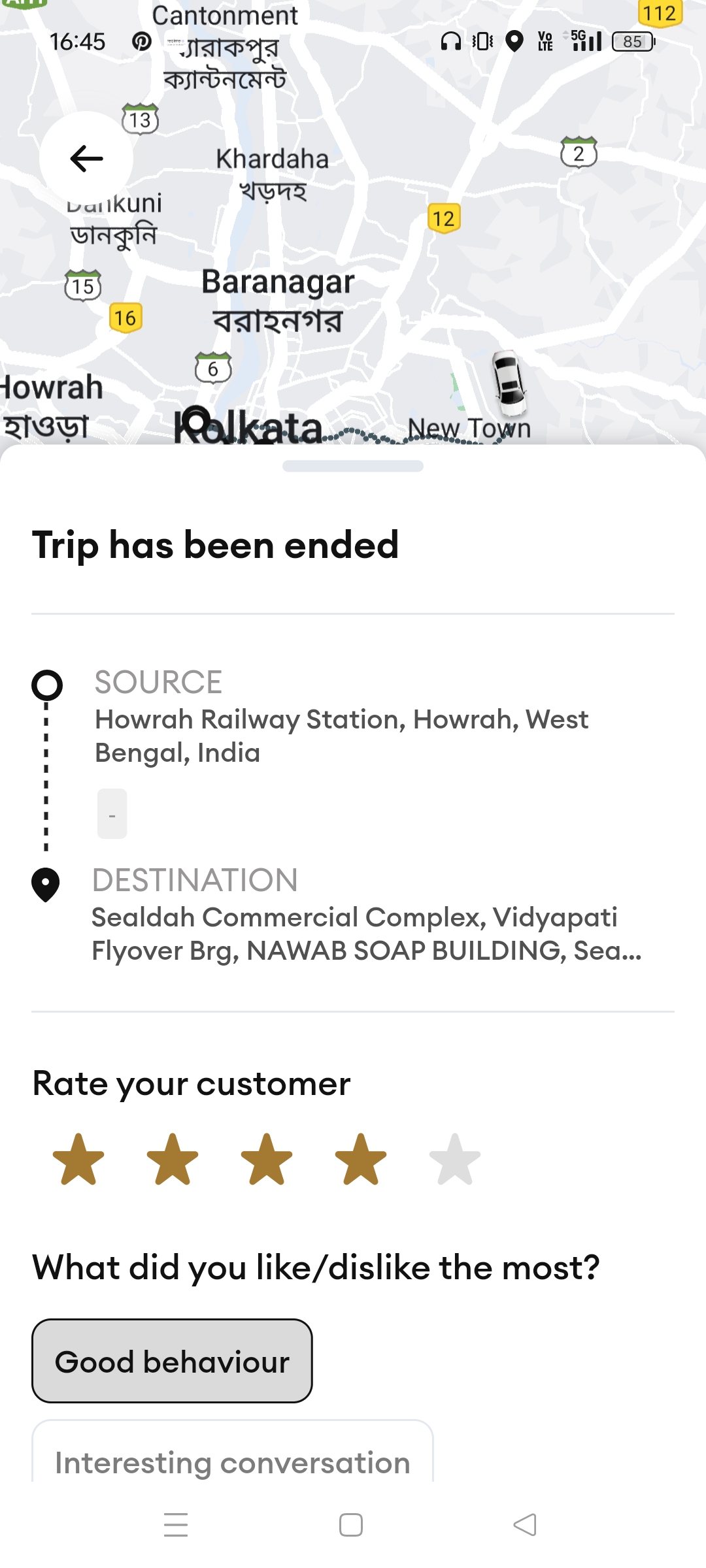
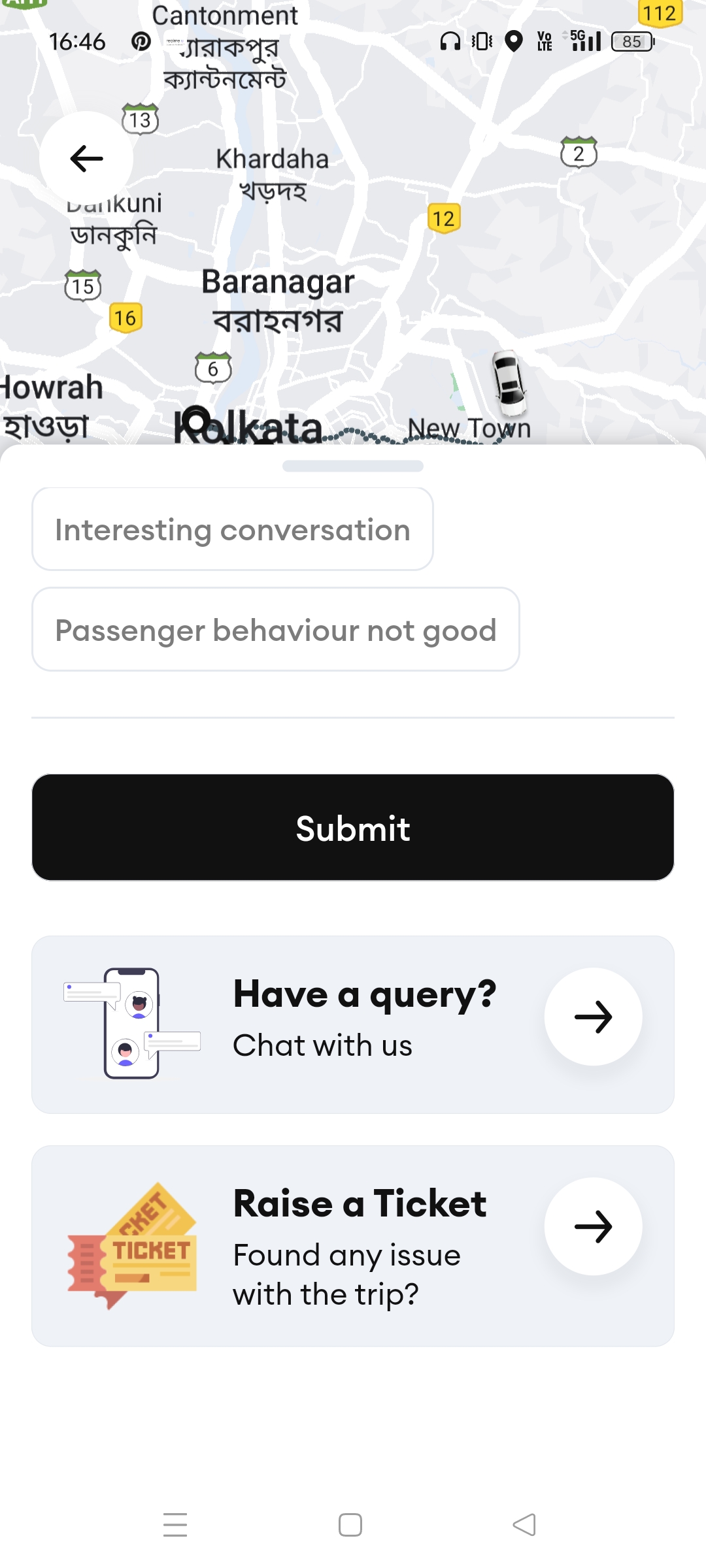
- After the trip has ended the driver can rate the trip and tap on submit.
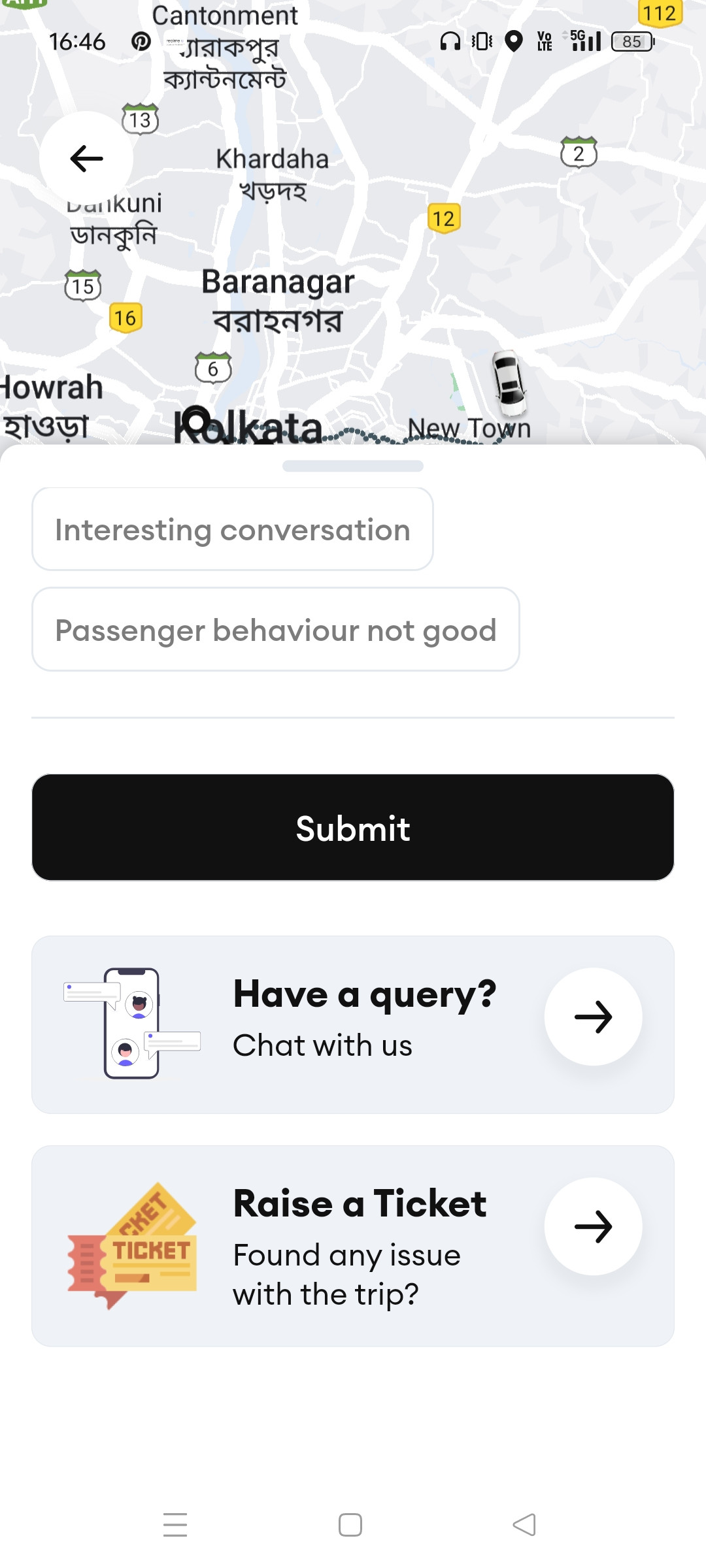
- Also, there are 'Have a query ?' and 'Raise a ticket' options. The 'Have a query ?' option allows the driver to chat with customer support regarding any queries. The 'Raise a ticket' option allows the driver to raise a ticket regarding any problem the driver is facing.
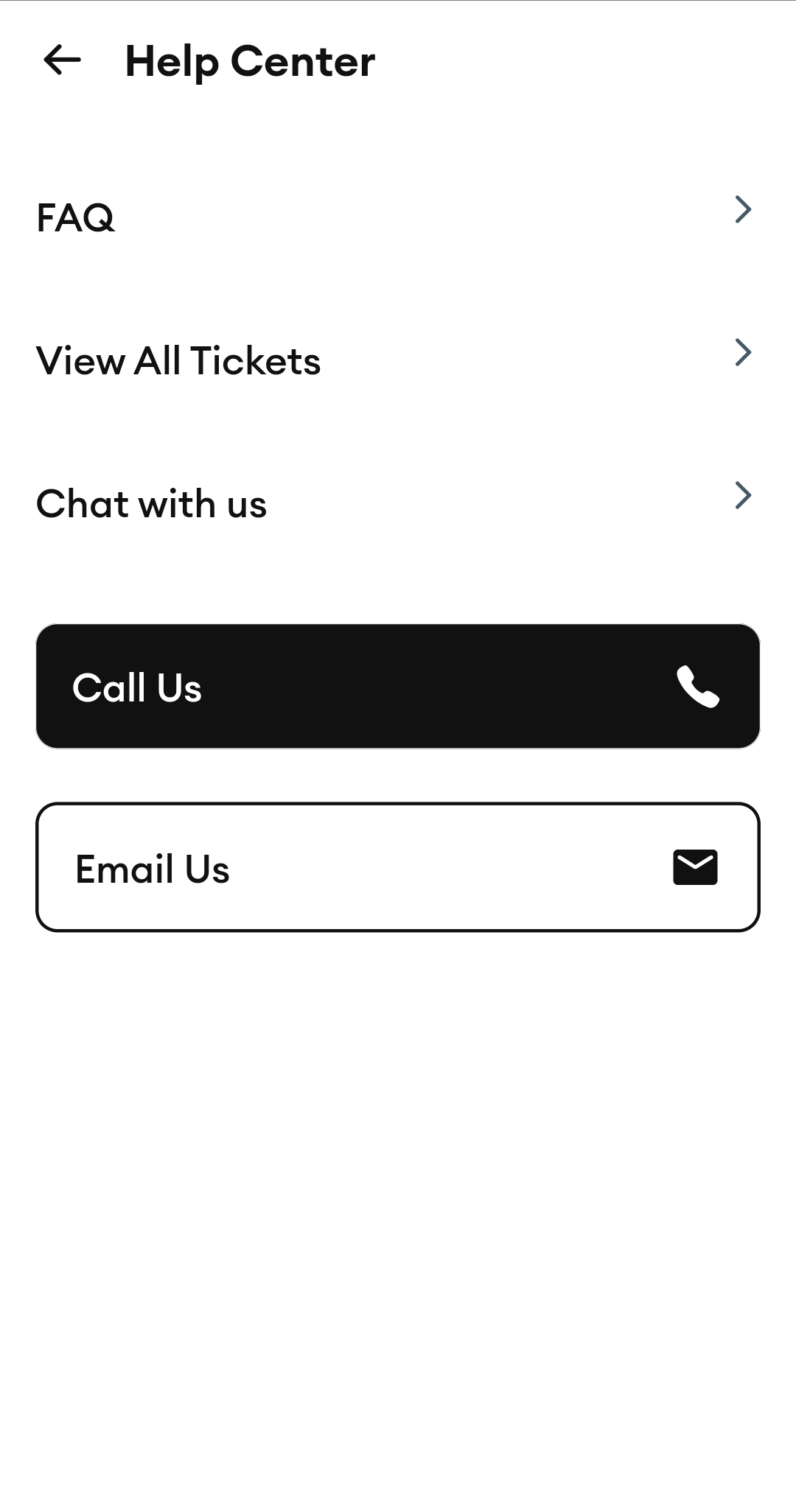
Help Center
If you need any kind of help or guidance feel free to use the 'Help center'. You will have the following options here -
- FAQ - This section will provide you with answers to some commonly asked queries.
- View All Tickets - This section displays all the open and closed tickets.
- Chat with us - This section allows you to text your query or problem to customer support.
- Call Us - This allows the driver to call customer support.
- Email Us - This allows the driver to mail customer support.
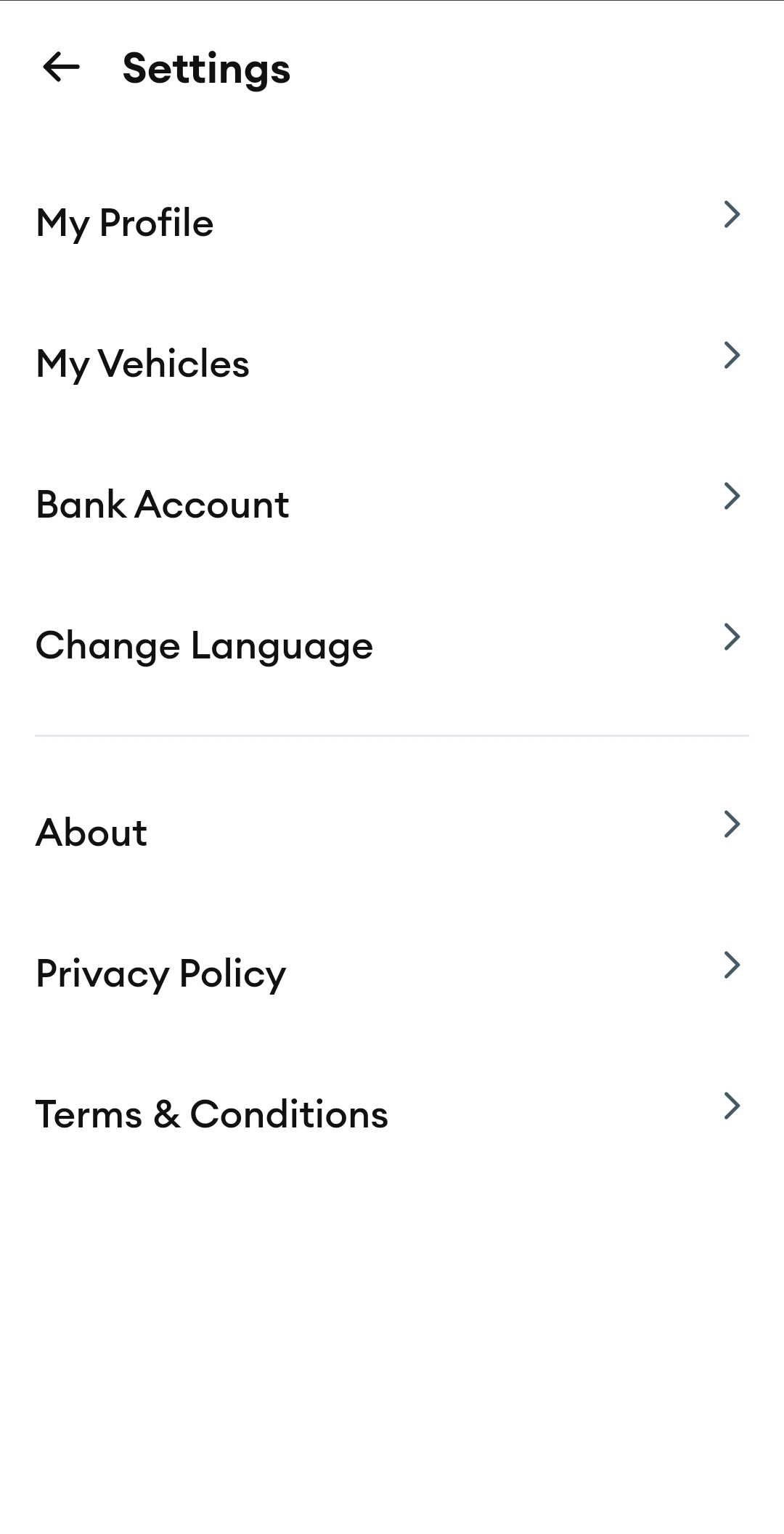
Settings
Here the driver will be able to edit profiles, vehicles, bank account details
- My Profile - From here, the driver will be able to view and edit your profile. you can change/edit your password, phone number, and Driving license.
- My Vehicles - From here, the driver will be able to add, edit, and delete vehicles
- Bank Account - From here, the driver can change the bank account details.
- Change Language - Change App Language from here.