Add contacts
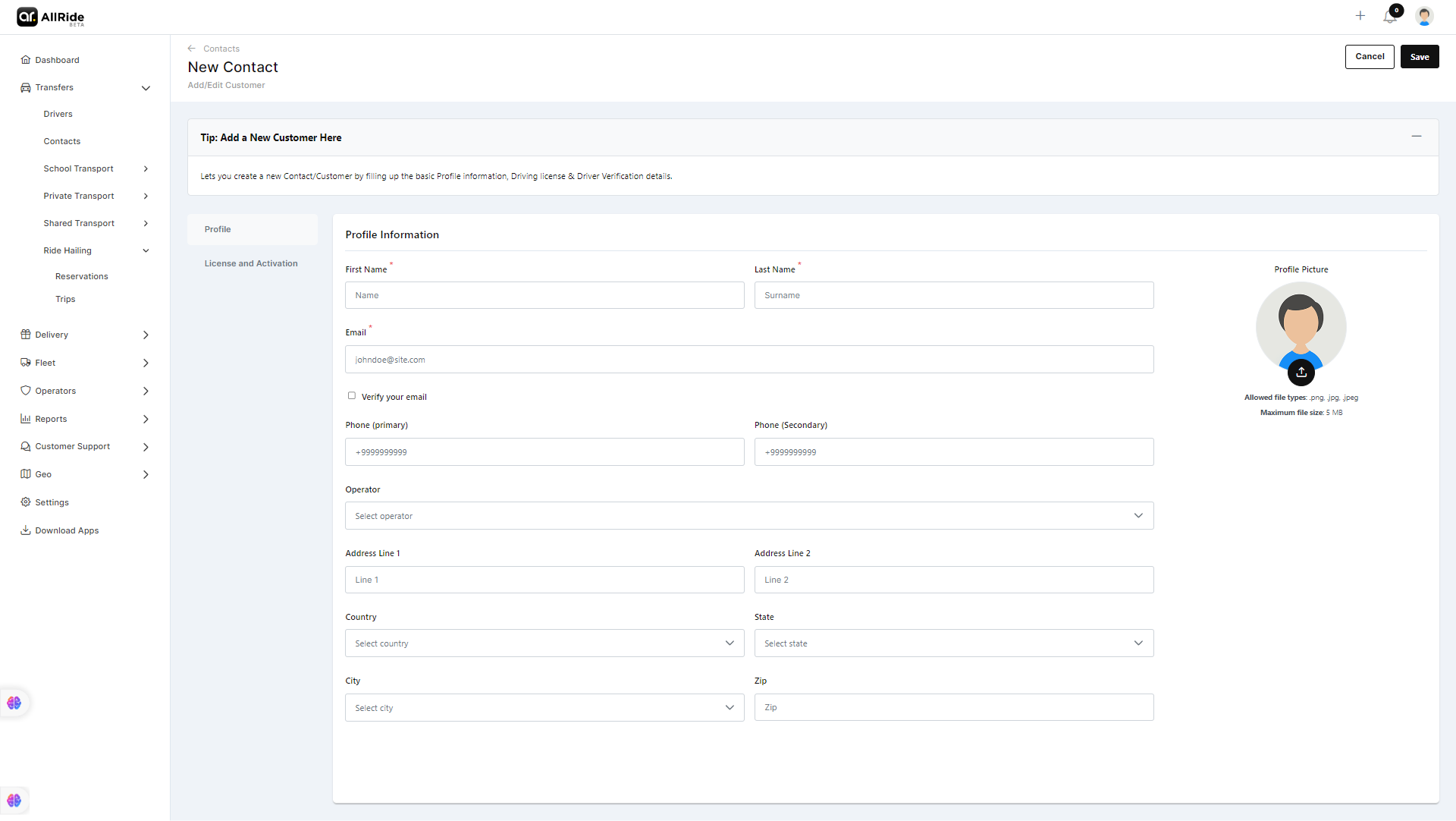
To add a new customer contact, the user is presented with a form comprising two main parts:
Profile Information
The "Profile" section of the "Add New Contact" form is designed to collect essential information about a passenger or contact within the system. Here is an explanation of the fields within this section:
- First Name
*: A mandatory field for entering the contact's given name. - Last Name
*: A mandatory field for entering the contact's family name or surname. - Email
*: A mandatory field where the contact's email address is inputted for electronic communication. Right under it, there is a checkbox for email verification. - Phone (Primary): A field to enter the main contact number for the passenger.
- Phone (Secondary): An additional field for an alternative or secondary contact number.
- Operator: A dropdown list to associate the contact with a specific operator or service within the system. This could be used to assign the contact to a specific customer service representative or to categorize them under different service areas.
- Address Line 1: The primary street address or residence of the contact.
- Address Line 2: Additional address information, which could include apartment numbers, suite numbers, or other necessary details for mail and deliveries.
- Country: A dropdown menu to select the country where the contact resides.
- State: Another dropdown menu to select the state within the selected country, further refining the contact's location.
- City: A dropdown list to choose the city of the contact's address.
- Zip: The postal or zip code associated with the contact’s address.
On the right, there's a placeholder for the Profile Picture, which allows for a visual identifier for the contact.The information captured here forms the foundation of the contact's profile for communication, service provision, and operational logistics. It can be crucial for sending correspondence, managing bookings, and tailoring services to the contact’s location.

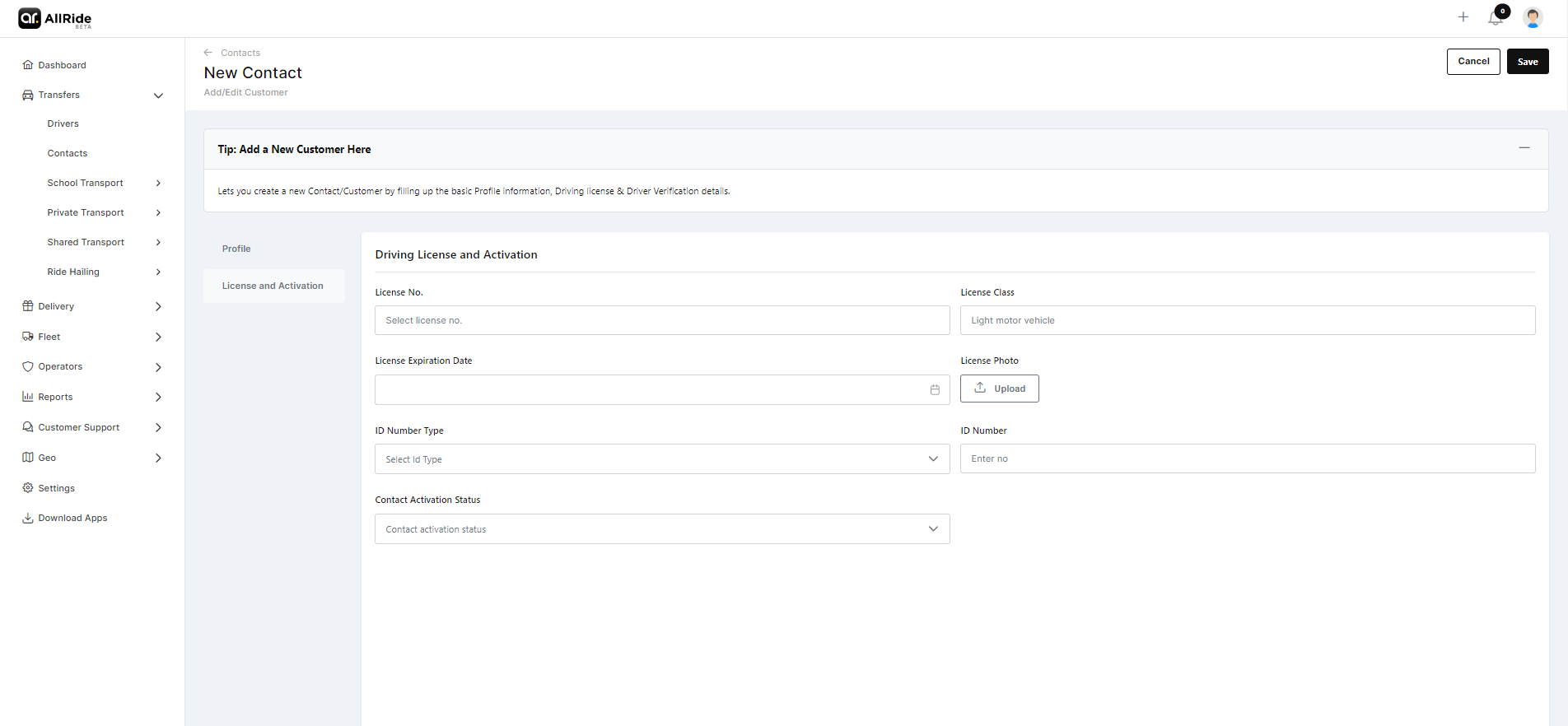
License and Activation
The "License and Activation" tab appears to be a section within a system where information related to a contact's driving license and their account activation status can be inputted and managed. Here is the function of each field:
- License No.: A field to enter the unique identifier or number of the contact’s driving license.
- License Class: This field may describe the type or category of vehicle the contact is licensed to operate, such as "Light motor vehicle."
- License Expiration Date: The date when the driving license will expire or is due for renewal. Typically, this will have a date picker for accurate recording.
VerificationLicense Photo: An upload button to attach a digital image of the driving license, allowing for visual verification of the document.- ID Number Type: A dropdown menu for selecting the type of identification document provided for verifying the contact's identity, which could include a passport, national ID, etc.
VerificationIDNoNumber: The field where the number of the chosen verification ID type is entered.- Contact Activation Status: A dropdown menu to set the status of the contact's account within the system, which may include statuses like "Active," "Inactive," or "Pending."
License Photo:An upload button to attach a digital image of the driving license, allowing for visual verification of the document.
This tab is vital for ensuring that all necessary legal documentation for contact is valid, up-to-date, and verified. It is also used to manage the activation status of a contact's account, likely affecting their ability to access and use certain features within the system.